
By Pankaj Kumar
Secured Socket Layer (SSL) is the cryptography protocol to provide message security over the Internet. It works on the notion of Private and Public keys and messages are encrypted before sending it over the network. To configure SSL on Tomcat, we need a digital certificate that can be created using Java keytool for the development environment. For the production environment, you should get the digital certificate from SSL certificate providers, for example, Verisign, Entrust, Lets’ Encrypt.
Creating SSL Certificate
Follow the below steps to create your own digital certificate.
$ keytool -genkey -alias tomcat -keyalg RSA -keystore mycertificate.cert
Enter keystore password:
Re-enter new password:
What is your first and last name?
  [Unknown]:  Pankaj Kumar
What is the name of your organizational unit?
  [Unknown]:  Dev
What is the name of your organization?
  [Unknown]:  JournalDev
What is the name of your City or Locality?
  [Unknown]:  Bangalore
What is the name of your State or Province?
  [Unknown]:  Karnataka
What is the two-letter country code for this unit?
  [Unknown]:  IN
Is CN=Pankaj Kumar, OU=Dev, O=JournalDev, L=Bangalore, ST=Karnataka, C=IN correct?
  [no]:  Yes

Enter key password for <tomcat>
	(RETURN if same as keystore password):
Re-enter new password:
$ ls
mycertificate.cert
I have used the password “changeit” for Keystore and key but you can use whatever you want. Now our digital certificate is ready and the next step is to enable HTTPS communication port in Tomcat and set it to use our digital certificate for providing SSL support.
Tomcat HTTPS
To enable SSL open ~Tomcat_Installation/conf/server.xml file and uncomment following line:
<Connector port="8443" maxHttpHeaderSize="8192"
               maxThreads="150" minSpareThreads="25" maxSpareThreads="75"
               enableLookups="false" disableUploadTimeout="true"
               acceptCount="100" scheme="https" secure="true"
               keystoreFile="/Users/Pankaj/tomcat/conf/mycertificate.cert"
	       clientAuth="false" sslProtocol="TLS" />
To avoid any misplacement of the certificate, I have put that in the tomcat conf directory. Now restart Tomcat and try to access any web application over https with port 8443. 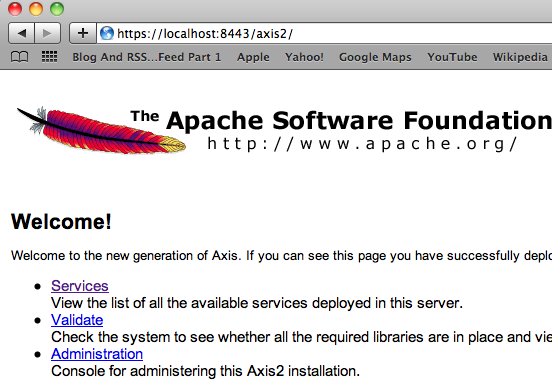
Tomcat Redirect HTTP to HTTPS
So we can access any web application on both HTTP and HTTPS ports. We can set up tomcat to redirect all HTTP request to HTTPS port with some configurations.
-
In
~TomcatInstallation/conf/server.xmlFor HTTP Connector, set the redirect port to the HTTPS connector port. It will look somewhat like this:<!-- Define a non-SSL HTTP/1.1 Connector on port 8080 --> <Connector port="8090" maxHttpHeaderSize="8192" maxThreads="150" minSpareThreads="25" maxSpareThreads="75" enableLookups="false" redirectPort="8443" acceptCount="100" connectionTimeout="20000" disableUploadTimeout="true" /> </pre> </li> <li>In ~TomcatInstallation/conf/web.xml Add below configuration but make sure to add it after all the servlet-mapping tags. <pre> <!-- added by Pankaj for automatic redirect from HTTP to HTTPS --> <security-constraint> <web-resource-collection> <web-resource-name>Entire Application</web-resource-name> <url-pattern>/*</url-pattern> </web-resource-collection> <user-data-constraint> <transport-guarantee>CONFIDENTIAL</transport-guarantee> </user-data-constraint> </security-constraint>
Restart the tomcat now and all the HTTP requests will automatically be redirected to HTTPS i.e https://localhost:8080/axis2 will be automatically redirected to https://localhost:8443/axis2 Note: If you don’t want to provide ports in the URLs, then use 80 for HTTP and 443 for HTTPS. In that case, you can skip the first step to automatically redirect HTTP requests to HTTPS because it will automatically pick the default port 443. Update: If you are working on Tomcat, you might be interested in the following posts.
Thanks for learning with the DigitalOcean Community. Check out our offerings for compute, storage, networking, and managed databases.
About the author
Java and Python Developer for 20+ years, Open Source Enthusiast, Founder of https://www.askpython.com/, https://www.linuxfordevices.com/, and JournalDev.com (acquired by DigitalOcean). Passionate about writing technical articles and sharing knowledge with others. Love Java, Python, Unix and related technologies. Follow my X @PankajWebDev
Still looking for an answer?
 This work is licensed under a Creative Commons Attribution-NonCommercial- ShareAlike 4.0 International License.
Become a contributor for community
Get paid to write technical tutorials and select a tech-focused charity to receive a matching donation.

DigitalOcean Documentation
Full documentation for every DigitalOcean product.

Resources for startups and AI-native businesses
The Wave has everything you need to know about building a business, from raising funding to marketing your product.
The developer cloud
Scale up as you grow — whether you're running one virtual machine or ten thousand.

Start building today
From GPU-powered inference and Kubernetes to managed databases and storage, get everything you need to build, scale, and deploy intelligent applications.


