
Sr Technical Content Strategist and Team Lead
Introduction
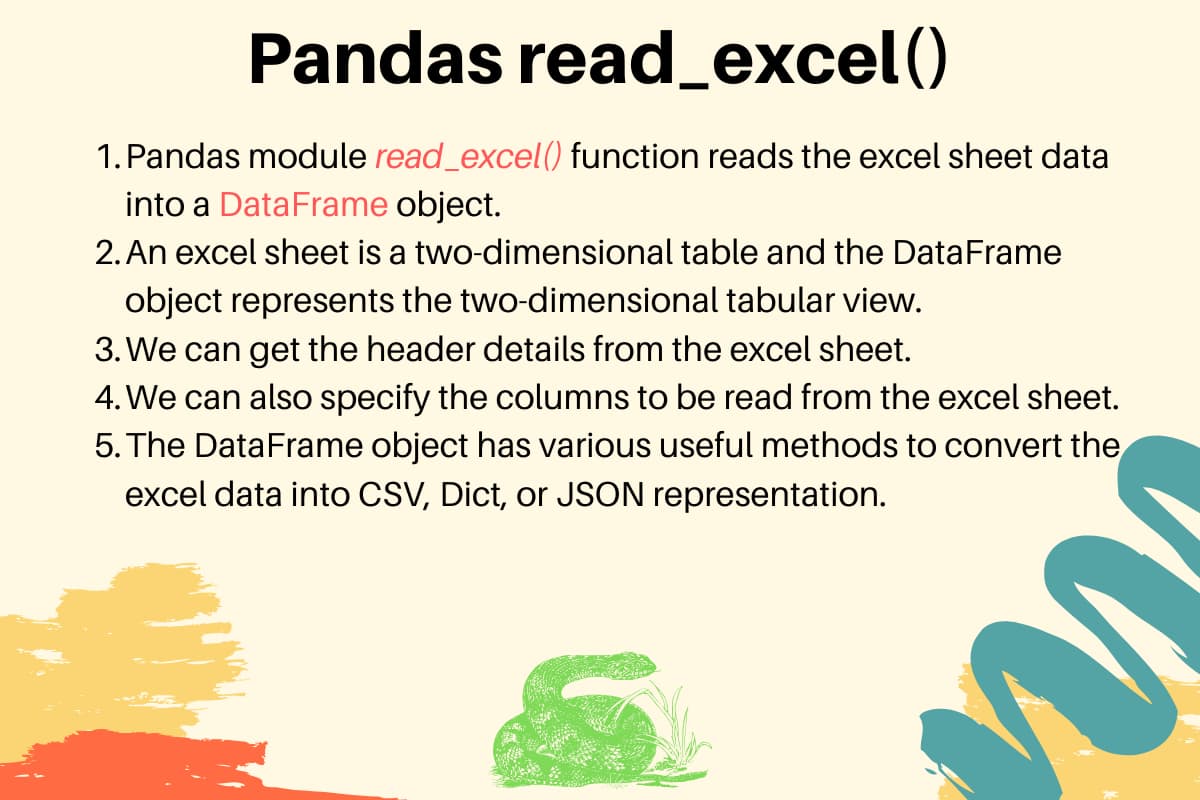
Pandas read_excel loads rows and columns from .xls, .xlsx, .xlsm, .xlsb,
and OpenDocument spreadsheets into a DataFrame (or a dictionary of frames when
you ask for more than one sheet). Reading Excel files in Python with pandas
still depends on small helper libraries called engines, so you install the
engine that matches each file format before you call read_excel.
Key takeaways
read_excelreturns oneDataFrameby default (sheet_name=0). Passsheet_name=Nonewhen you need every sheet at once.- Modern
.xlsxfiles use theopenpyxlengine by default. Legacy.xlsbinaries needxlrd>=2.0.1, which only reads.xls. Binary.xlsbwork needspyxlsb. - Optional
python-calamineunlocks the fastcalamineengine for multiple binary and OpenDocument formats when you passengine="calamine". - Pair
dtype,parse_dates, andna_valuestogether so finance and operations data land with the correct types on the first read. - Large workbooks belong in CSV or Parquet for repeated processing. Use
nrowswhile you prototype, then switch formats for production throughput.
Prerequisites
-
Python 3.10 or newer on your workstation or Droplet. If you need a fresh runtime, follow How To Install Python 3 and Set Up a Local Programming Environment on Ubuntu.
-
A virtual environment plus
pip:- python3 -m venv ~/.venv-pandas && source ~/.venv-pandas/bin/activate
- python -m pip install --upgrade pip
-
Install pandas plus the engines you expect:
- python -m pip install pandas openpyxl xlrd pyxlsb python-calamine
-
Optional background reading on tabular Python tools: Python Pandas Module Tutorial, How To Install the pandas Package and Work with Data Structures in Python 3.
Step 1: Inspect a workbook before you parse it
Assume records.xlsx contains two sheets named Employees and Cars. Preview
headers with ExcelFile:
import pandas as pd

with pd.ExcelFile("records.xlsx") as xls:
    print(xls.sheet_names)
Step 2: Read a single sheet with read_excel
read_excelimport pandas as pd
employees = pd.read_excel("records.xlsx", sheet_name="Employees")
print(employees)
Sample output:
   EmpID    EmpName   EmpRole
0      1     Pankaj       CEO
1      2  David Lee    Editor
2      3   Lisa Ray    Author
Step 3: Core parameters at a glance
| Parameter | Default | What you pass | Why you set |
|---|---|---|---|
io |
required | Path, URL, or file object | Points at the workbook |
sheet_name |
0 |
int, str, list, or None | Pick sheets |
header |
0 |
int, list of ints, or None | Header row index |
index_col |
None |
int, str, or list | Promote index columns |
usecols |
None |
names, letters, callable | Limit columns |
dtype |
None |
dtype or dict | Lock types during ingest |
skiprows |
None |
int, list, or callable | Skip leading rows |
nrows |
None |
int |
Limit rows for sampling |
na_values |
None |
scalar, list, or dict | Treat strings as NaN |
parse_dates |
False |
bool, list, or dict | Build datetime columns |
engine |
auto | openpyxl, xlrd, pyxlsb, calamine | Force parser choice |
Step 4: Select columns and skip noise
cars = pd.read_excel(
    "records.xlsx",
    sheet_name="Cars",
    usecols=["Car Name", "Car Price"],
)
print(cars)
You supply Excel column letters when you prefer positional selection:
subset = pd.read_excel("records.xlsx", sheet_name="Cars", usecols="A,B")
Step 5: Handle workbooks without a clean header row
raw = pd.read_excel("records.xlsx", sheet_name="Numbers", header=None)
Set header=3 when the real column names live on the fourth row (zero indexed
row 3). Rows above the header are ignored automatically.
Step 6: Read multiple sheets in one call
all_sheets = pd.read_excel("records.xlsx", sheet_name=None)
print(all_sheets.keys())
employees_df = all_sheets["Employees"]
sheet_name=None returns an OrderedDict of DataFrame objects keyed by sheet
name. Passing a list such as sheet_name=["Employees", "Cars"] returns a dict
with only those sheets.
Step 7: Control types, missing tokens, and dates
import pandas as pd

typed = pd.read_excel(
    "records.xlsx",
    sheet_name="Employees",
    dtype={"EmpID": "Int64", "EmpName": "string", "EmpRole": "string"},
    na_values={"EmpRole": ["TBD", "NA"]},
)
When a workbook stores real dates, name the columns explicitly:
shipments = pd.read_excel("shipments.xlsx", parse_dates=["ShipDate", "ArrivalDate"])
When Excel stores a column as opaque serial numbers, read the column with
dtype="float" (or object) and pass the values through pd.to_datetime with
the origin argument documented for your workbook’s date system.
Step 8: Choose the right engine
| Format | Suggested engine | Install command |
|---|---|---|
.xlsx, .xlsm |
openpyxl |
python -m pip install openpyxl |
.xls |
xlrd |
python -m pip install "xlrd>=2.0.1" |
.xlsb |
pyxlsb |
python -m pip install pyxlsb |
| Many formats | calamine |
python -m pip install python-calamine |
Force an engine when pandas guesses wrong:
df = pd.read_excel("records.xlsx", engine="calamine")
Step 9: Read files hosted at a HTTPS URL
import pandas as pd

url = "https://example.com/path/to/public-sheet.xlsx"
remote = pd.read_excel(url)
The URL must return a workbook directly, not an HTML landing page.
Step 10: Export to dict, JSON, or CSV
excel_data_df = pd.read_excel(
    "records.xlsx", sheet_name="Cars", usecols=["Car Name", "Car Price"]
)

print("Excel Sheet to Dict:", excel_data_df.to_dict(orient="records"))
print("Excel Sheet to JSON:", excel_data_df.to_json(orient="records"))
print("Excel Sheet to CSV:\n", excel_data_df.to_csv(index=False))
orient="records" yields one dict per row, which matches most REST payloads.
Step 11: Practical performance habits
- Use
nrows=5000while you iterate on cleaning logic, then drop the cap for the final run. - When the same multi megabyte workbook feeds a nightly job, convert once to
Parquet and read with
pd.read_parquetfor faster IO and stricter schemas. - Set
na_filter=Falsewhen the sheet contains no missing values to skip extra parsing passes (see the pandas docs for tradeoffs).
Step 12: Compare read_excel with other tools
read_excel with other tools- openpyxl by itself gives low level control over merged cells, styling, and incremental writes. Use openpyxl when pandas cannot represent the layout.
- xlwings controls a live Excel desktop process on Windows or macOS. Use xlwings when macros or legacy COM automation are required.
- Polars or other dataframe stacks often prefer converting Excel to Parquet once, then loading with a columnar reader for stricter schemas and faster IO.
For more pandas workflows after ingest, read Data Analysis and Visualization with pandas and Jupyter Notebook in Python 3 and Exploratory Data Analysis: Using Python Functions.
Troubleshooting
ImportError: Missing optional dependency 'openpyxl'means you skipped the engine install. Runpython -m pip install openpyxl.XLRDError: Excel xlsx file not supportedappears whenxlrd2.x opens an.xlsxfile. Pointengine="openpyxl"or install openpyxl instead of downgrading xlrd.ValueError: Worksheet named 'Foo' not foundsignals a typo insheet_name. PrintExcelFile.sheet_namesfirst.- Unexpected
objectdtypes usually mean mixed types in a column. Set an explicitdtype, or clean the sheet in Excel, then re export.
FAQs
1. How do openpyxl and xlrd differ inside pandas?
openpyxl reads modern Office Open XML workbooks (.xlsx, .xlsm, .xltx).
xlrd 2.x reads legacy .xls only. Choose openpyxl for every new spreadsheet,
and keep xlrd around for older binary files only.
2. How do I load every sheet at once?
Call pd.read_excel("file.xlsx", sheet_name=None) and iterate over the dict of
frames.
3. Why do my dates arrive as strings?
Excel often stores dates as text or floats. Pass parse_dates=["Column"], or
read the column as text and run pd.to_datetime with an explicit format
argument.
4. Is there a faster engine than openpyxl?
Install python-calamine and pass engine="calamine" for supported formats.
Benchmark on your own files before you switch production jobs.
5. How should I debug a slow workbook?
Profile with nrows, drop unused columns with usecols, then archive cleaned
results to CSV or Parquet for downstream consumers. How to Parse CSV Files in
Python and How to Read and Write CSV Files in Python
show the follow on steps once data leaves Excel.
Conclusion
You now know how pandas read_excel loads Excel files in Python, which engines
match each format, and how to shape types while you read instead of patching
issues later.
Continue building on DigitalOcean
- Practice grouping and plotting in Data Analysis and Visualization with pandas and Jupyter Notebook in Python 3.
- Solidify core types with Understanding Data Types in Python and Understanding Dictionaries in Python 3.
- Deploy notebooks or ETL workers on DigitalOcean Droplets or ship managed apps on App Platform when you move from local experiments to production.
Thanks for learning with the DigitalOcean Community. Check out our offerings for compute, storage, networking, and managed databases.
About the author
I help Businesses scale with AI x SEO x (authentic) Content that revives traffic and keeps leads flowing | 3,000,000+ Average monthly readers on Medium | Sr Technical Writer(Team Lead) @ DigitalOcean | Ex-Cloud Consultant @ AMEX | Ex-Site Reliability Engineer(DevOps)@Nutanix
Still looking for an answer?


Thanks, useful post. excel_data_df = pandas.read_excel(‘records.xlsx’, sheet_name=‘Cars’, usecols=[‘Car Name’, ‘Car Price’]) results in an empty dataframe for me. Do we need to do some setup?
- Rahul Misra
Thanks pankaj… It saved my data. I wanted to read from a specific folder so I tweaked it for the location. pd.read_excel(‘C:/Source/Datafile.xlsx’, sheet_name=‘sheet_name’)
- Rajjan
how can we remove a specific row? I have a ‘Total’ row at the end of my Excel file that I would want to remove. Thanks for the helpful info in this article!
- Josh Rodriguez
 This work is licensed under a Creative Commons Attribution-NonCommercial- ShareAlike 4.0 International License.
Become a contributor for community
Get paid to write technical tutorials and select a tech-focused charity to receive a matching donation.

DigitalOcean Documentation
Full documentation for every DigitalOcean product.

Resources for startups and AI-native businesses
The Wave has everything you need to know about building a business, from raising funding to marketing your product.
The developer cloud
Scale up as you grow — whether you're running one virtual machine or ten thousand.

Start building today
From GPU-powered inference and Kubernetes to managed databases and storage, get everything you need to build, scale, and deploy intelligent applications.
