
Introduction
DigitalOcean Spaces is an object storage service that can be used to store large amounts of diverse, unstructured data. WordPress sites, which often include image and video assets, can be good candidates for object storage solutions. Using object storage for these types of static resources can optimize site performance by freeing up space and resources on your servers. For more information about object storage and WordPress check out our tutorial on How To Back Up a WordPress Site to Spaces.
In this tutorial, we will use a WordPress plugin that works directly with DigitalOcean Spaces to use it as the primary asset store. The DigitalOcean Spaces Sync plugin routes the data of our WordPress media library to Spaces and provides you with various configuration options based on your needs, streamlining the process of using object storage with your WordPress instance.
Prerequisites
This tutorial assumes that you have a WordPress instance on a server as well as a DigitalOcean Space. If you do not have this setup, you can complete the following:
- One Ubuntu server, set up following our Initial Server Setup with Ubuntu tutorial.
- A LAMP stack installed on your server, following our tutorial on How To Install Linux, Apache, MySQL, PHP (LAMP) stack on Ubuntu.
- WordPress installed on your server, following our tutorial on How To Install WordPress with LAMP on Ubuntu.
- A DigitalOcean Space and API key, created by following How To Create a DigitalOcean Space and API Key.
- WP-CLI installed by following these instructions.
With these prerequisites in place, we’re ready to begin using this plugin.
Modifying WordPress Permissions
Throughout this tutorial, we will be working with the wp-content/uploads folder in our WordPress project, so it is important that this folder exists and has the correct permissions. You can create it with the mkdir command using the -p flag to create the folder if it doesn’t exist, and avoid throwing an error if it does:
- sudo mkdir -p /var/www/html/wp-content/uploads
You can now set permissions on the folder. First, set the ownership to your user (we will use sammy here, but be sure to use your non-root sudo user), and group ownership to the www-data group:
- sudo chown -R sammy:www-data /var/www/html/wp-content/uploads
Next, establish the permissions that will give the web server write access to this folder:
- sudo chmod -R g+w /var/www/html/wp-content/uploads
We will now be able to use our plugins to create a store in object storage for the assets in the wp-content/uploads folder and to engage with our assets from the WordPress interface.
Installing DigitalOcean Spaces Sync
The first step in using DigitalOcean Spaces Sync will be to install it in our WordPress folder. We can navigate to the plugin folder within our WordPress directory:
- cd /var/www/html/wp-content/plugins
From here, we can install DigitalOcean Spaces Sync using the wp command:
- wp plugin install do-spaces-sync
To activate the plugin, we can run:
- wp plugin activate do-spaces-sync
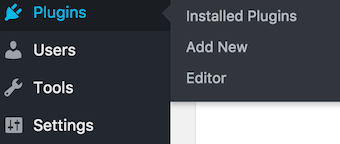
From here, we can navigate to the Plugins tab on the left-hand side of our WordPress administrative dashboard:
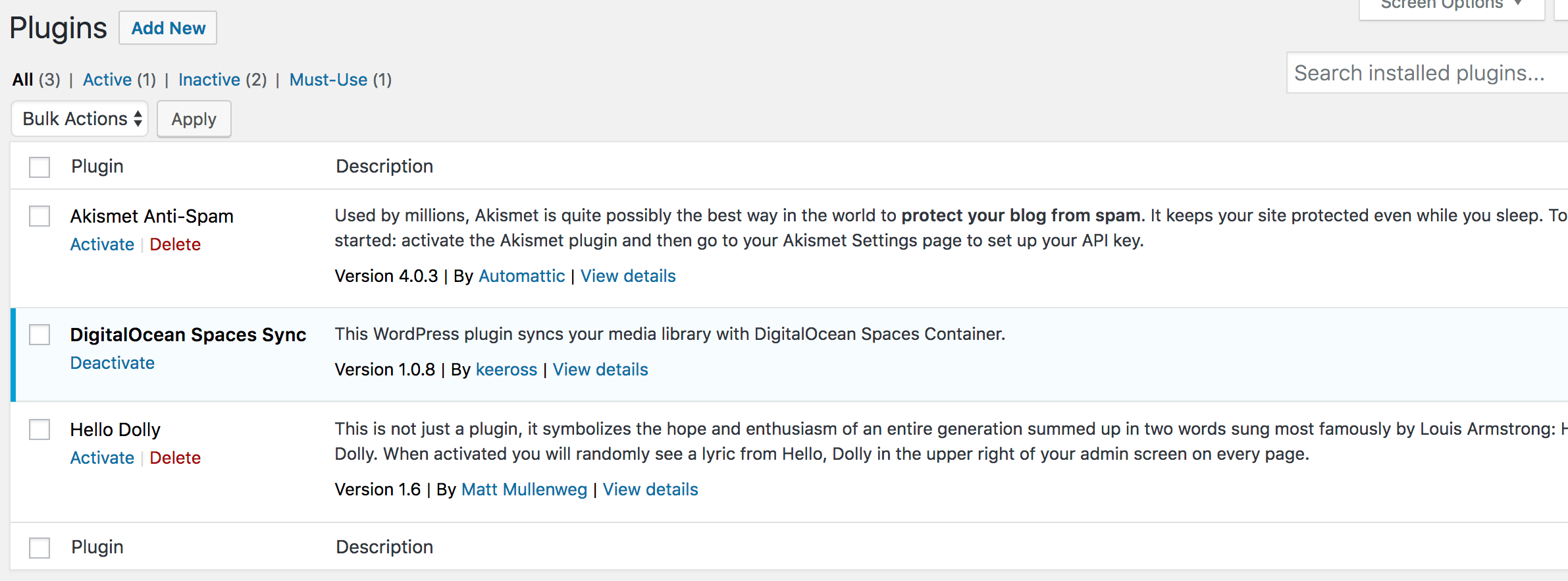
We should see DigitalOcean Spaces Sync in our list of activated plugins:
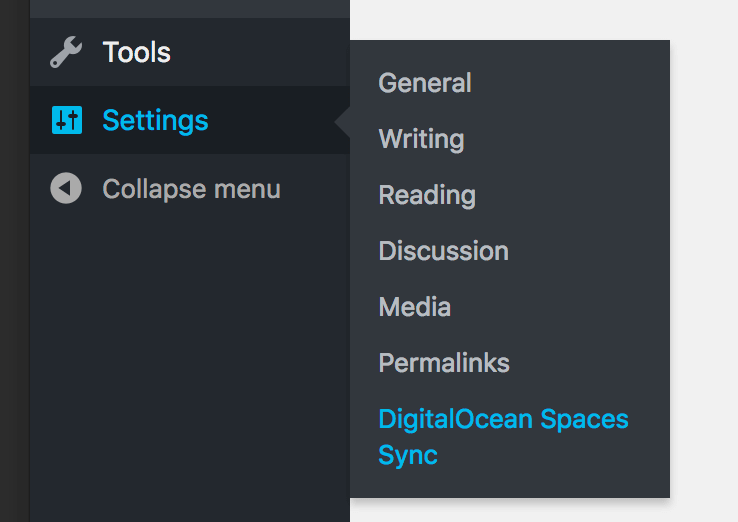
To manage the settings for DigitalOcean Spaces Sync, we can navigate to our Settings tab, and select DigitalOcean Spaces Sync from the menu:
DigitalOcean Spaces Sync will now give us options to configure our asset storage:
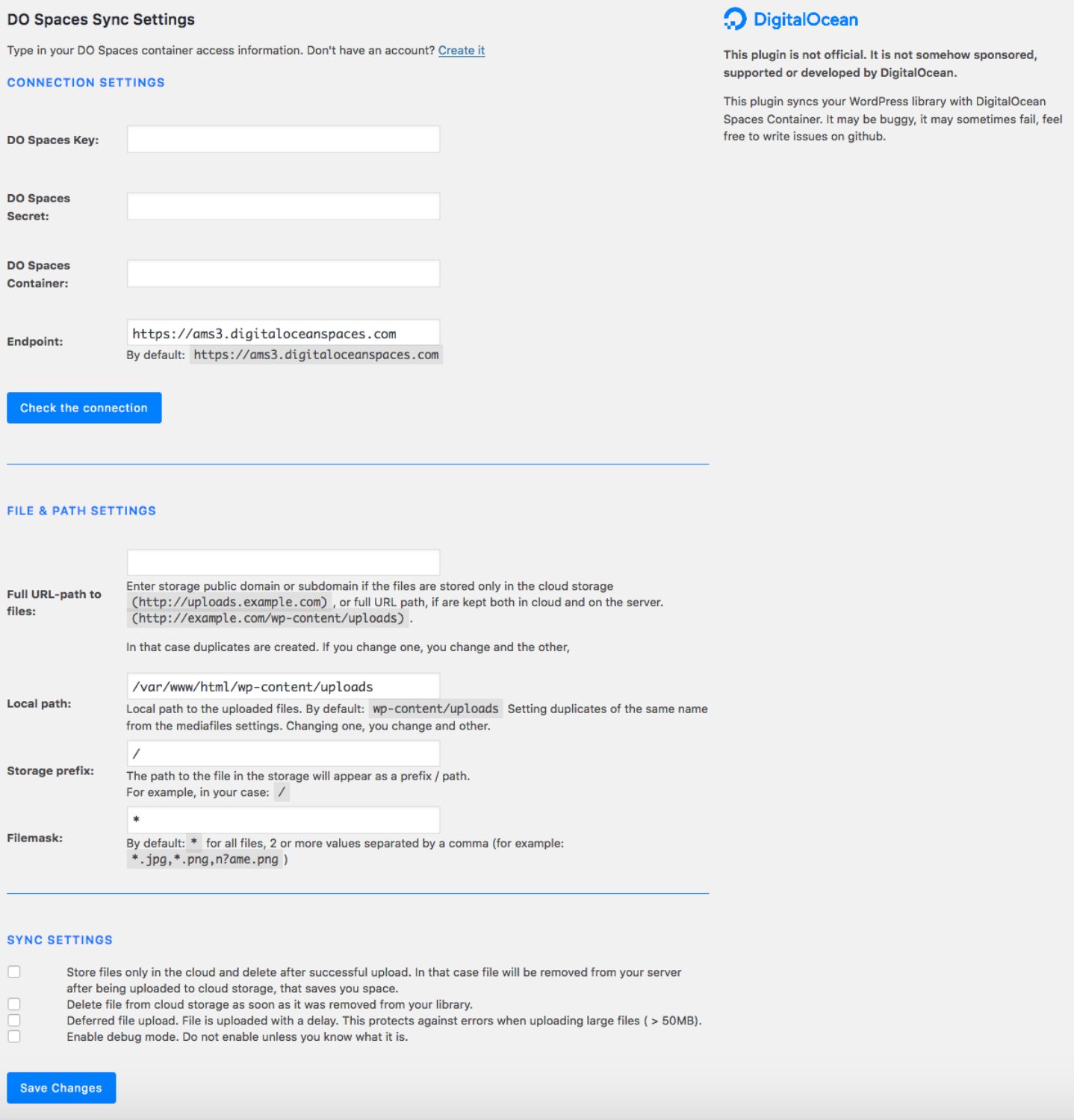
The Connection Settings field in the top half of the screen asks for our Spaces Access Key and Secret. It will then ask for our Container, which will be the name of our Space and the Endpoint.
You can determine the endpoint of your Space based on its URL. For example, if the URL of your Space is https://example-name.nyc3.digitaloceanspaces.com, then example-name will be your bucket/container, and nyc3.digitaloceanspaces.com will be your endpoint.
In the plugin’s interface, the Endpoint section will be pre-filled with the default https://ams3.digitaloceanspaces.com. You should modify this endpoint if your Space lives in another region.
Next, you will be asked for File & Path Settings. In the field marked Full URL-path to files, you can input either a storage public domain, if your files will be stored only on your Space, or a full URL path, if you will store them on your Space and server.
For example, if your WordPress project is located in /var/www/html, and you want to store files on both your server and Space, then you would enter:
http://your_server_ip/wp-content/uploadsin the Full URL-path to files field/var/www/html/wp-content/uploadsin the Local path field
The Storage prefix and Filemask settings are prefilled and do not need to be modified unless you would like to specify certain types of files for your sync.
We will cover the specifics of storing files on your server and Space and your Space alone in the following sections.
Syncing and Saving Files in Multiple Locations
DigitalOcean Spaces Sync offers the option of saving files to your server while also syncing them to your Space. This utility can be helpful if you need to keep files on your server, but would also like backups stored elsewhere. We will go through the process of syncing a file to our Space while keeping it on our server. For this example, we will assume that we have a file called sammy10x10.png that we would like to store in our media library and our Space.
First, navigate to the Settings tab on your WordPress administrative dashboard, and select DigitalOcean Spaces Sync from the menu of presented options.
Next, in the Connections Settings field, enter your Spaces Key and Secret, followed by your Container and Endpoint. Remember, if the URL of your Space is https://example-name.nyc3.digitaloceanspaces.com, then example-name will be your Container, and nyc3.digitaloceanspaces.com will be your Endpoint. Test your connections by clicking the Check the Connection button at the bottom of the Connection Settings field:

Now we are ready to fill out the File & Path Settings.
In the Full URL-path to files field, we can enter our full URL path, since we are saving our file on our server and our Space. We will use our server’s IP here, but if you have a domain, you can swap out the IP address for your domain name. For more about registering domains with DigitalOcean, see our tutorial on How To Set Up a Host Name with DigitalOcean. In our case, the Full URL-path to files will be http://your_server_ip/wp-content/uploads.
Next, we will fill out the Local path field with the local path to the uploads directory: /var/www/html/wp-content/uploads.
Because we are working with a single file, we do not need to modify the Storage prefix and Filemask sections. As your WordPress media library grows in size and variety, you can modify this setting to target individual file types using wildcards and extensions such as *.png in the Filemask field.
Your final File & Path Settings will look like this:
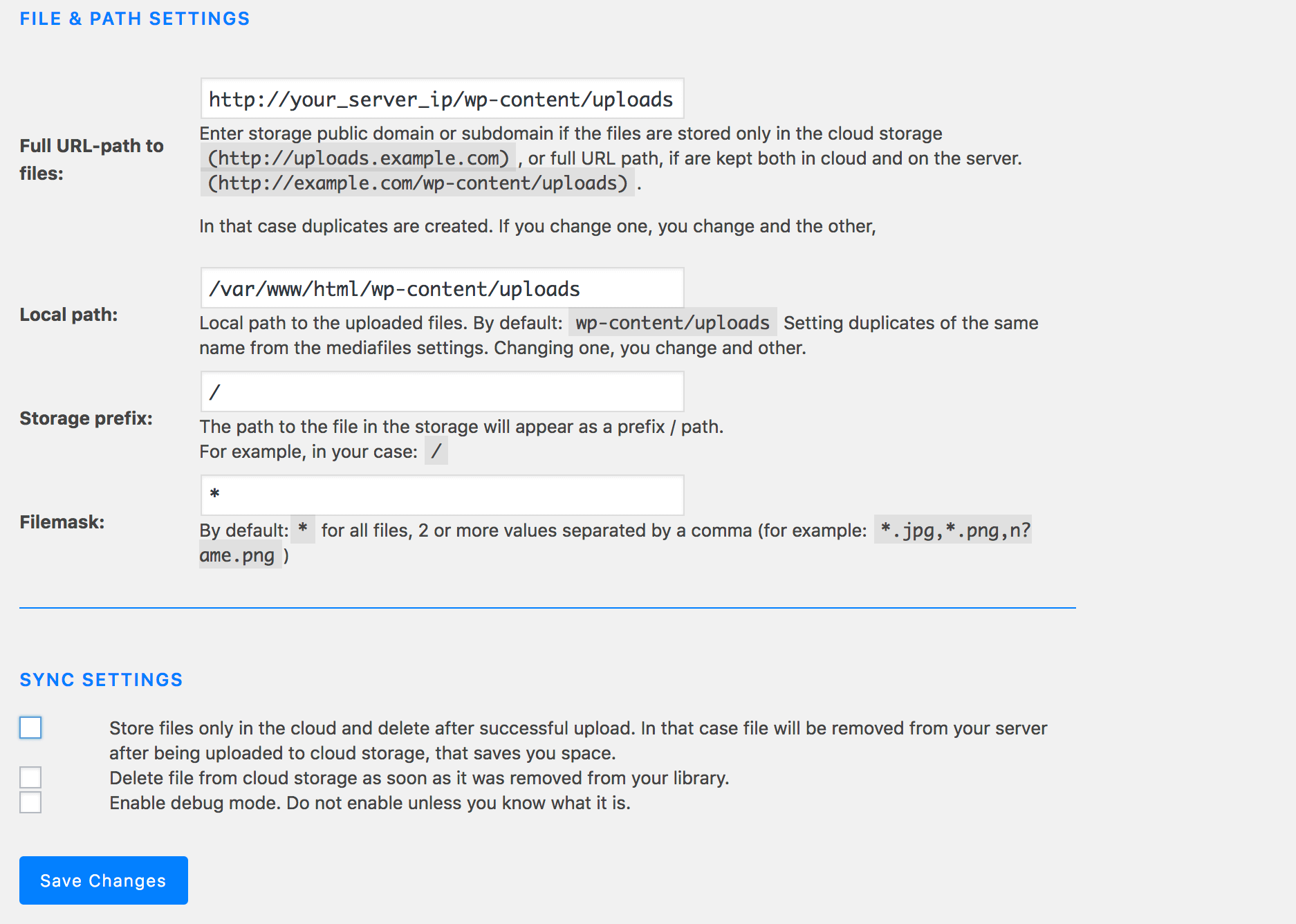
Be sure to save your configuration changes by clicking the Save Changes button at the bottom of the screen.
Now we can add our file, sammy10x10.png, to our WordPress media library. We will use the wp media import command, which will import the file from our home directory to our WordPress media library. In this case, our home directory will belong to sammy, but in your case, this will be your non-root sudo user. As we move the file, we will use the --path parameter to specify the location of our WordPress project:
- wp media import --path=/var/www/html/ /home/sammy/sammy10x10.png
Looking at our WordPress interface, we should now see our file in our Media Library. We can navigate there by following the Media Library tab on the left side of our WordPress administrative dashboard:

If we navigate to our Spaces page in the DigitalOcean control panel, we should also see the file in our Space.
Finally, we can navigate to our wp-content/uploads folder, where WordPress will have created a sub-folder with the year and month. Within this folder, we should see our sammy10x10.png file.
Storing Files on Spaces
The DigitalOcean Spaces Sync plugin has an additional option that will allow us to store files only on our Space, in case we would like to optimize space and resources on our server. We will work with another file, sammy-heart10x10.png, and set our DigitalOcean Spaces Sync settings so that this file will be stored only on our Space.
First, let’s navigate back to the plugin’s main configuration page:
We can leave the Connection Settings information, but we will modify the File & Path Settings. First, in the Full URL-path to files, we will write the storage public domain. Again, we will use our server IP, but you can swap this out for a domain if you have one: http://uploads.your_server_ip
Next, we will navigate to Sync Settings, at the bottom of the page, and click the first box, which will allow us to “store files only in the cloud and delete after successful upload.” Your final File & Path Settings will look like this:
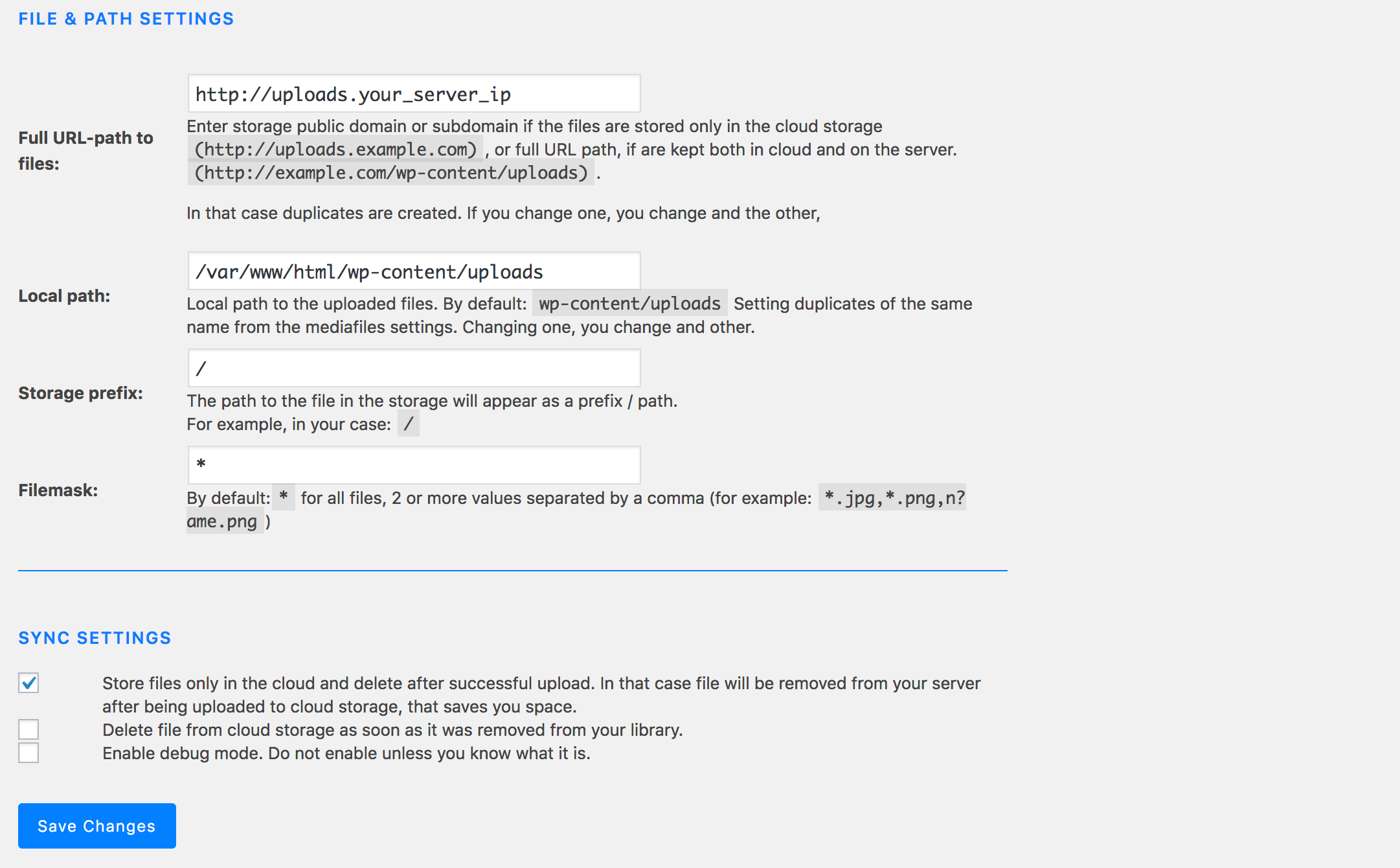
Be sure to save your changes by clicking the Save Changes button at the bottom of the screen.
Back on the command line, we will move sammy-heart10x10.png from our user’s home directory to our Media Library using wp media import:
- wp media import --path=/var/www/html/ /home/sammy/sammy-heart10x10.png
If we navigate back to our WordPress interface, we will not see sammy-heart10x10.png or sammy10x10.png in our Media Library. Next, if we return to the command line and navigate to our wp-content/uploads directory, we should see that sammy-heart10x10.png is missing from our timestamped sub-folder.
Finally, if we navigate to the Spaces page in the DigitalOcean control panel, we should see both files stored in our Space.
Conclusion
We have covered two different options you can use to store your WordPress media files in DigitalOcean Spaces using DigitalOcean Spaces Sync. This plugin offers additional options for customization, which you can learn more about by reading the developer’s article Sync your WordPress media with DigitalOcean Spaces.
If you would like more general information about working with Spaces, check out our introduction to DigitalOcean Spaces and our guide to best practices for performance on Spaces.
Thanks for learning with the DigitalOcean Community. Check out our offerings for compute, storage, networking, and managed databases.
About the author

Former Developer at DigitalOcean community. Expertise in areas including Ubuntu, Docker, Ruby on Rails, Debian, and more.
Still looking for an answer?
 This work is licensed under a Creative Commons Attribution-NonCommercial- ShareAlike 4.0 International License.
Become a contributor for community
Get paid to write technical tutorials and select a tech-focused charity to receive a matching donation.

DigitalOcean Documentation
Full documentation for every DigitalOcean product.

Resources for startups and AI-native businesses
The Wave has everything you need to know about building a business, from raising funding to marketing your product.
The developer cloud
Scale up as you grow — whether you're running one virtual machine or ten thousand.

Start building today
From GPU-powered inference and Kubernetes to managed databases and storage, get everything you need to build, scale, and deploy intelligent applications.



