

By Savic and Kathryn Hancox
Not using Ubuntu 20.04?
Choose a different version or distribution.
The author selected the Free and Open Source Fund to receive a donation as part of the Write for DOnations program.
Introduction
With developer tools moving to the cloud, creation and adoption of cloud IDE (Integrated Development Environment) platforms is growing. Cloud IDEs allow for real-time collaboration between developer teams to work in a unified development environment that minimizes incompatibilities and enhances productivity. Accessible through web browsers, cloud IDEs are available from every type of modern device.
code-server is Microsoft Visual Studio Code running on a remote server and accessible directly from your browser. Visual Studio Code is a modern code editor with integrated Git support, a code debugger, smart autocompletion, and customizable and extensible features. This means that you can use various devices running different operating systems, and always have a consistent development environment on hand.
In this tutorial, you will set up the code-server cloud IDE platform on your Ubuntu 20.04 machine and expose it at your domain, secured with free Let’s Encrypt TLS certificates. In the end, you’ll have Microsoft Visual Studio Code running on your Ubuntu 20.04 server, available at your domain and protected with a password.
Prerequisites
-
A server running Ubuntu 20.04 with at least 2GB RAM, root access, and a sudo, non-root account. You can set this up by following this initial server setup guide.
-
Nginx installed on your server. For a guide on how to do this, complete Steps 1 to 4 of How To Install Nginx on Ubuntu 20.04.
-
A fully registered domain name to host code-server, pointed to your server. This tutorial will use
code-server.your-domainthroughout. You can purchase a domain name on Namecheap, get one for free on Freenom, or use the domain registrar of your choice. For DigitalOcean, you can follow this introduction to DigitalOcean DNS for details on how to add them.
Step 1 — Installing code-server
In this section, you will set up code-server on your server. This entails downloading the latest version and creating a systemd service that will keep code-server always running in the background. You’ll also specify a restart policy for the service, so that code-server stays available after possible crashes or reboots.
You’ll store all data pertaining to code-server in a folder named ~/code-server. Create it by running the following command:
- mkdir ~/code-server
Navigate to it:
- cd ~/code-server
You’ll need to head over to the Github releases page of code-server and pick the latest Linux build (the file will contain ‘linux’ in its name). At the time of writing, the latest version was 3.3.1. Download it using wget by running the following command:
- wget https://github.com/cdr/code-server/releases/download/v3.3.1/code-server-3.3.1-linux-amd64.tar.gz
Then, unpack the archive by running:
- tar -xzvf code-server-3.3.1-linux-amd64.tar.gz
You’ll get a folder named exactly as the original file you downloaded, which contains the code-server source code. Copy it to /usr/lib/code-server so you’ll be able to access it system wide by running the following command:
- sudo cp -r code-server-3.3.1-linux-amd64 /usr/lib/code-server
Then, create a symbolic link at /usr/bin/code-server, pointing to the code-server executable:
- sudo ln -s /usr/lib/code-server/bin/code-server /usr/bin/code-server
Next, create a folder for code-server, where it will store user data:
- sudo mkdir /var/lib/code-server
Now that you’ve downloaded code-server and made it available system-wide, you will create a systemd service to keep code-server running in the background at all times.
You’ll store the service configuration in a file named code-server.service, in the /lib/systemd/system directory, where systemd stores its services. Create it using your text editor:
- sudo nano /lib/systemd/system/code-server.service
Add the following lines:
[Unit]
Description=code-server
After=nginx.service

[Service]
Type=simple
Environment=PASSWORD=your_password
ExecStart=/usr/bin/code-server --bind-addr 127.0.0.1:8080 --user-data-dir /var/lib/code-server --auth password
Restart=always

[Install]
WantedBy=multi-user.target
Here you first specify the description of the service. Then, you state that the nginx service must be started before this one. After the [Unit] section, you define the type of the service (simple means that the process should be simply run) and provide the command that will be executed.
You also specify that the global code-server executable should be started with a few arguments specific to code-server. --bind-addr 127.0.0.1:8080 binds it to localhost at port 8080, so it’s only directly accessible from inside of your server. --user-data-dir /var/lib/code-server sets its user data directory, and --auth password specifies that it should authenticate visitors with a password, specified in the PASSWORD environment variable declared on the line above it.
Remember to replace your_password with your desired password, then save and close the file.
The next line tells systemd to restart code-server in all malfunction events (for example, when it crashes or the process is killed). The [Install] section orders systemd to start this service when it becomes possible to log in to your server.
Start the code-server service by running the following command:
- sudo systemctl start code-server
Check that it’s started correctly by observing its status:
- sudo systemctl status code-server
You’ll see output similar to:
Output● code-server.service - code-server
     Loaded: loaded (/lib/systemd/system/code-server.service; disabled; vendor preset: enabled)
     Active: active (running) since Wed 2020-05-20 13:03:40 UTC; 12s ago
   Main PID: 14985 (node)
      Tasks: 18 (limit: 2345)
     Memory: 26.1M
     CGroup: /system.slice/code-server.service
             ├─14985 /usr/lib/code-server/bin/../lib/node /usr/lib/code-server/bin/.. --bind-addr 127.0.0.1:8080 --user-data-dir /var/lib/code-server --auth>
             └─15010 /usr/lib/code-server/lib/node /usr/lib/code-server --bind-addr 127.0.0.1:8080 --user-data-dir /var/lib/code-server --auth password

May 20 13:03:40 code-server-update-2004 systemd[1]: Started code-server.
May 20 13:03:40 code-server-update-2004 code-server[15010]: info  Wrote default config file to ~/.config/code-server/config.yaml
May 20 13:03:40 code-server-update-2004 code-server[15010]: info  Using config file ~/.config/code-server/config.yaml
May 20 13:03:40 code-server-update-2004 code-server[15010]: info  Using user-data-dir /var/lib/code-server
May 20 13:03:40 code-server-update-2004 code-server[15010]: info  code-server 3.3.1 6f1309795e1cb930edba68cdc7c3dcaa01da0ab3
May 20 13:03:40 code-server-update-2004 code-server[15010]: info  HTTP server listening on http://127.0.0.1:8080
May 20 13:03:40 code-server-update-2004 code-server[15010]: info      - Using password from $PASSWORD
May 20 13:03:40 code-server-update-2004 code-server[15010]: info      - To disable use `--auth none`
May 20 13:03:40 code-server-update-2004 code-server[15010]: info    - Not serving HTTPS
To make code-server start automatically after a server reboot, enable its service by running the following command:
- sudo systemctl enable code-server
In this step, you’ve downloaded code-server and made it available globally. Then, you’ve created a systemd service for it and enabled it, so code-server will start at every server boot. Next, you’ll expose it at your domain by configuring Nginx to serve as a reverse proxy between the visitor and code-server.
Step 2 — Exposing code-server at Your Domain
In this section, you will configure Nginx as a reverse proxy for code-server.
As you have learned in the Nginx prerequisite step, its site configuration files are stored under /etc/nginx/sites-available and must later be symlinked to /etc/nginx/sites-enabled to become active.
You’ll store the configuration for exposing code-server at your domain in a file named code-server.conf, under /etc/nginx/sites-available. Start off by creating it using your editor:
- sudo nano /etc/nginx/sites-available/code-server.conf
Add the following lines:
server {
	listen 80;
	listen [::]:80;

	server_name code-server.your-domain;

	location / {
	  proxy_pass http://localhost:8080/;
	  proxy_set_header Upgrade $http_upgrade;
	  proxy_set_header Connection upgrade;
	  proxy_set_header Accept-Encoding gzip;
	}
}
Replace code-server.your-domain with your desired domain, then save and close the file.
In this file, you define that Nginx should listen to HTTP port 80. Then, you specify a server_name that tells Nginx for which domain to accept requests and apply this particular configuration. In the next block, for the root location (/), you specify that requests should be passed back and forth to code-server running at localhost:8080. The next three lines (starting with proxy_set_header) order Nginx to carry over some HTTP request headers that are needed for correct functioning of WebSockets, which code-server extensively uses.
To make this site configuration active, you will need to create a symlink of it in the /etc/nginx/sites-enabled folder by running:
- sudo ln -s /etc/nginx/sites-available/code-server.conf /etc/nginx/sites-enabled/code-server.conf
To test the validity of the configuration, run the following command:
- sudo nginx -t
You’ll see the following output:
Outputnginx: the configuration file /etc/nginx/nginx.conf syntax is ok
nginx: configuration file /etc/nginx/nginx.conf test is successful
For the configuration to take effect, you’ll need to restart Nginx:
- sudo systemctl restart nginx
You now have your code-server installation accessible at your domain. In the next step, you’ll secure it by applying a free Let’s Encrypt TLS certificate.
Step 3 — Securing Your Domain
In this section, you will secure your domain using a Let’s Encrypt TLS certificate, which you’ll provision using Certbot.
To install the latest version of Certbot and its Nginx plugin, run the following command:
- sudo apt install certbot python3-certbot-nginx
As part of the prerequisites, you have enabled ufw (Uncomplicated Firewall) and configured it to allow unencrypted HTTP traffic. To be able to access the secured site, you’ll need to configure it to accept encrypted traffic by running the following command:
- sudo ufw allow https
The output will be:
OutputRule added
Rule added (v6)
Similarly to Nginx, you’ll need to reload it for the configuration to take effect:
- sudo ufw reload
The output will show:
OutputFirewall reloaded
Then, in your browser, navigate to the domain you used for code-server. You will see the code-server login prompt.
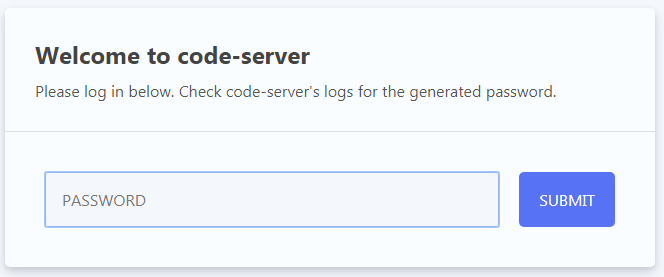
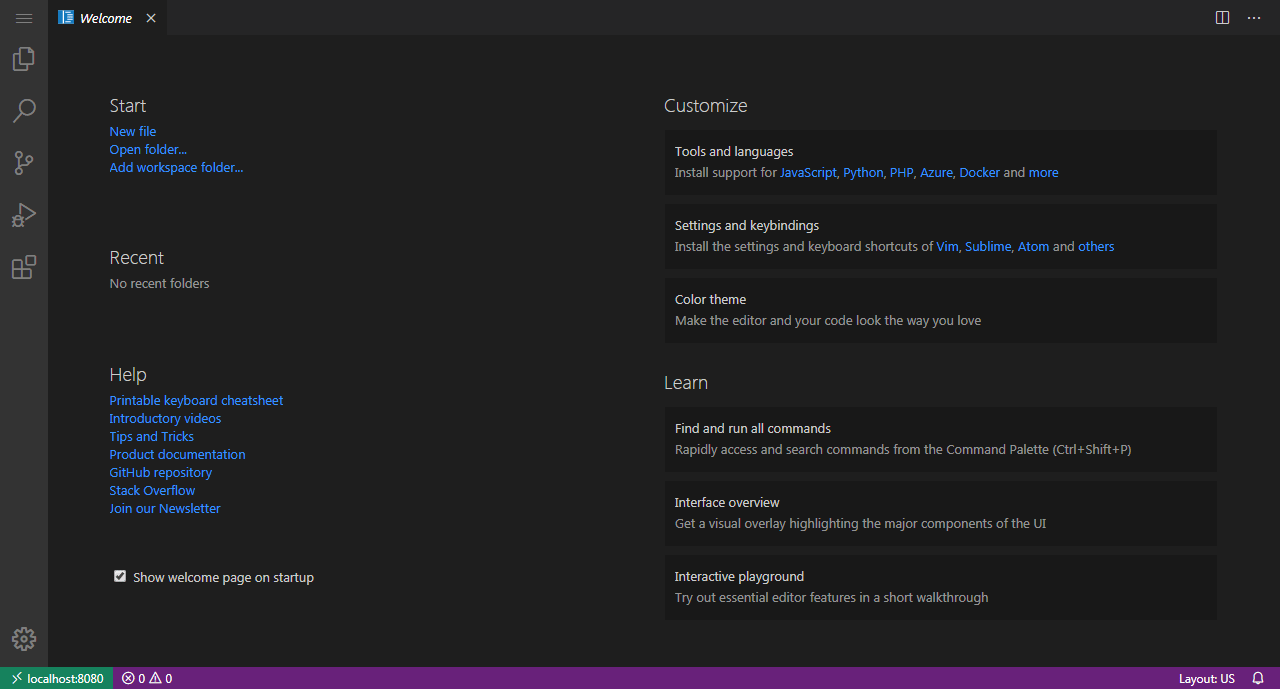
code-server is asking you for your password. Enter the one you set in the previous step and press Enter IDE. You’ll now enter code-server and immediately see its editor GUI.
Now that you’ve checked that code-server is correctly exposed at your domain, you’ll install Let’s Encrypt TLS certificates to secure it, using Certbot.
To request certificates for your domain, run the following command:
- sudo certbot --nginx -d code-server.your-domain
In this command, you run certbot to request certificates for your domain—you pass the domain name with the -d parameter. The --nginx flag tells it to automatically change Nginx site configuration to support HTTPS. Remember to replace code-server.your-domain with your domain name.
If this is your first time running Certbot, you’ll be asked to provide an email address for urgent notices and to accept the EFF’s Terms of Service. Certbot will then request certificates for your domain from Let’s Encrypt. It will then ask you if you’d like to redirect all HTTP traffic to HTTPS:
OutputPlease choose whether or not to redirect HTTP traffic to HTTPS, removing HTTP access.
- - - - - - - - - - - - - - - - - - - - - - - - - - - - - - - - - - - - - - - -
1: No redirect - Make no further changes to the webserver configuration.
2: Redirect - Make all requests redirect to secure HTTPS access. Choose this for
new sites, or if you're confident your site works on HTTPS. You can undo this
change by editing your web server's configuration.
- - - - - - - - - - - - - - - - - - - - - - - - - - - - - - - - - - - - - - - -
Select the appropriate number [1-2] then [enter] (press 'c' to cancel):
It is recommended to select the second option in order to maximize security. After you input your selection, press ENTER.
The output will be similar to this:
OutputIMPORTANT NOTES:
- Congratulations! Your certificate and chain have been saved at:
 /etc/letsencrypt/live/code-server.your-domain/fullchain.pem
 Your key file has been saved at:
 /etc/letsencrypt/live/code-server.your-domain/privkey.pem
 Your cert will expire on ... To obtain a new or tweaked
 version of this certificate in the future, simply run certbot again
 with the "certonly" option. To non-interactively renew *all* of
 your certificates, run "certbot renew"
- Your account credentials have been saved in your Certbot
 configuration directory at /etc/letsencrypt. You should make a
 secure backup of this folder now. This configuration directory will
 also contain certificates and private keys obtained by Certbot so
 making regular backups of this folder is ideal.
- If you like Certbot, please consider supporting our work by:

 Donating to ISRG / Let's Encrypt:   https://letsencrypt.org/donate
 Donating to EFF:                    https://eff.org/donate-le
This means that Certbot has successfully generated TLS certificates and applied them to the Nginx configuration for your domain. You can now reload your code-server domain in your browser and observe a padlock to the left of the site address, which means that your connection is properly secured.
Now that you have code-server accessible at your domain through a secured Nginx reverse proxy, you’re ready to review the user interface of code-server.
Step 4 — Using the code-server Interface
In this section, you’ll use some of the features of the code-server interface. Since code-server is Visual Studio Code running in the cloud, it has the same interface as the standalone desktop edition.
On the left-hand side of the IDE, there is a vertical row of six buttons opening the most commonly used features in a side panel known as the Activity Bar.
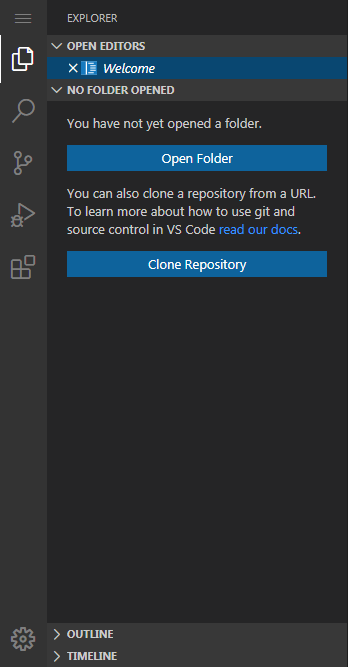
This bar is customizable so you can move these views to a different order or remove them from the bar. By default, the first button opens the general menu in a dropdown, while the second view opens the Explorer panel that provides tree-like navigation of the project’s structure. You can manage your folders and files here—creating, deleting, moving, and renaming them as necessary. The next view provides access to a search and replace functionality.
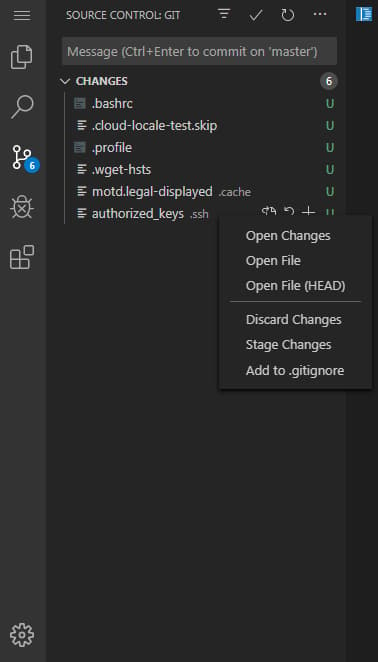
Following this, in the default order, is your view of the source control systems, like Git. Visual Studio code also supports other source control providers and you can find further instructions for source control work flows with the editor in this documentation.
The debugger option on the Activity Bar provides all the common actions for debugging in the panel. Visual Studio Code comes with built-in support for the Node.js runtime debugger and any language that transpiles to Javascript. For other languages you can install extensions for the required debugger. You can save debugging configurations in the launch.json file.
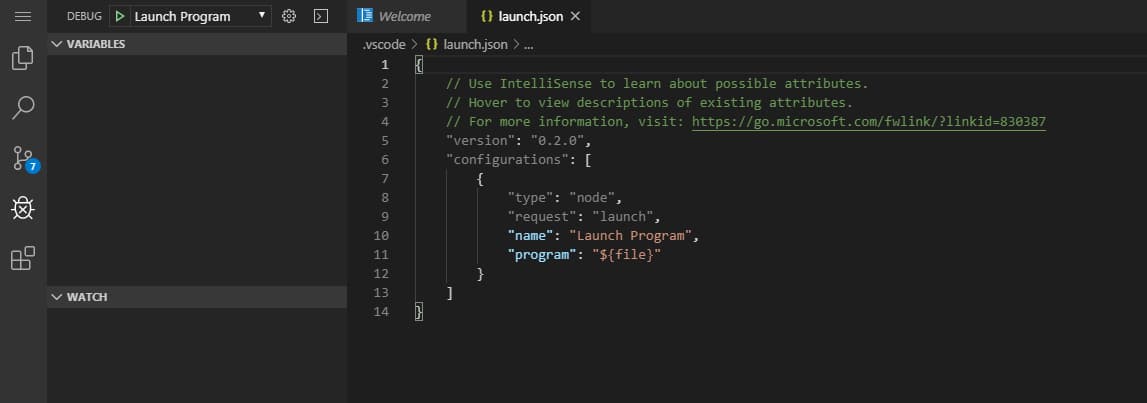
The final view in the Activity Bar provides a menu to access available extensions on the Marketplace.
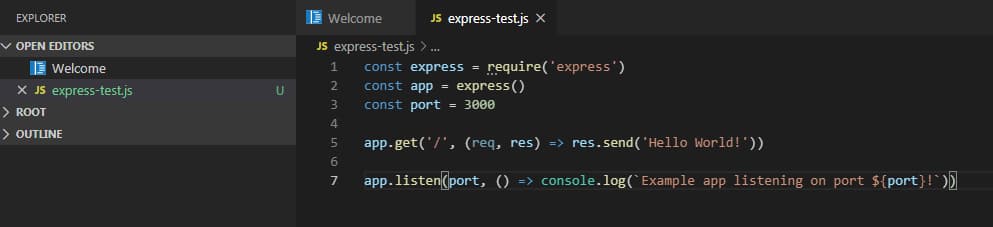
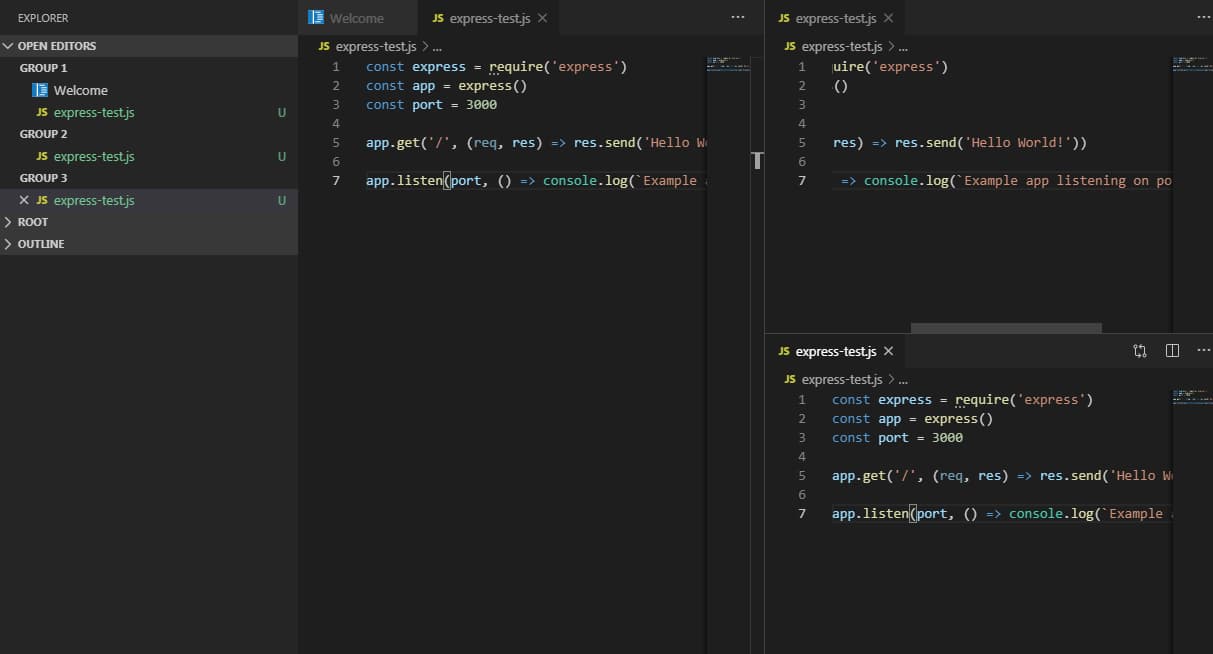
The central part of the GUI is your editor, which you can separate by tabs for your code editing. You can change your editing view to a grid system or to side-by-side files.
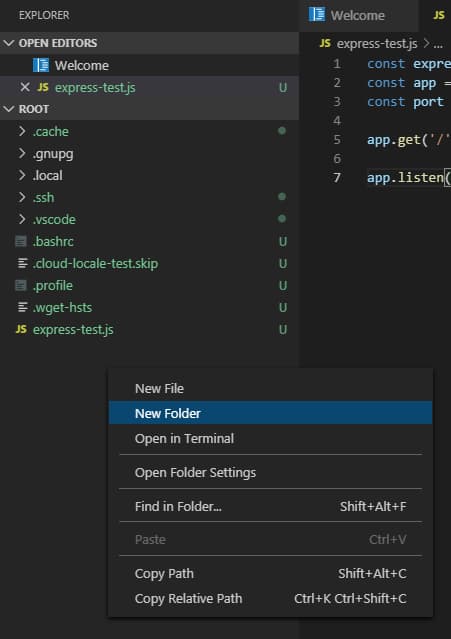
After creating a new file through the File menu, an empty file will open in a new tab, and once saved, the file’s name will be viewable in the Explorer side panel. Creating folders can be done by right clicking on the Explorer sidebar and clicking on New Folder. You can expand a folder by clicking on its name as well as dragging and dropping files and folders to upper parts of the hierarchy to move them to a new location.
You can gain access to a terminal by entering CTRL+SHIFT+` , or by clicking on Terminal in the upper menu dropdown, and selecting New Terminal. The terminal will open in a lower panel and its working directory will be set to the project’s workspace, which contains the files and folders shown in the Explorer side panel.
You’ve explored a high-level overview of the code-server interface and reviewed some of the most commonly used features.
Conclusion
You now have code-server, a versatile cloud IDE, installed on your Ubuntu 20.04 server, exposed at your domain and secured using Let’s Encrypt certificates. You can now work on projects individually, as well as in a team-collaboration setting. Running a cloud IDE frees resources on your local machine and allows you to scale the resources when needed. For further information, see the Visual Studio Code documentation for additional features and detailed instructions on other components of code-server.
If you would like to run code-server on your DigitalOcean Kubernetes cluster check out our tutorial on How To Set Up the code-server Cloud IDE Platform on DigitalOcean Kubernetes.
Thanks for learning with the DigitalOcean Community. Check out our offerings for compute, storage, networking, and managed databases.
About the author(s)
Expert in cloud topics including Kafka, Kubernetes, and Ubuntu.
Former Senior Technical Editor at DigitalOcean, with a strong focus on DevOps and System Administration content. Areas of expertise include Terraform, PyTorch, Python, and Django.
Still looking for an answer?
 This work is licensed under a Creative Commons Attribution-NonCommercial- ShareAlike 4.0 International License.
Become a contributor for community
Get paid to write technical tutorials and select a tech-focused charity to receive a matching donation.

DigitalOcean Documentation
Full documentation for every DigitalOcean product.

Resources for startups and AI-native businesses
The Wave has everything you need to know about building a business, from raising funding to marketing your product.
The developer cloud
Scale up as you grow — whether you're running one virtual machine or ten thousand.

Start building today
From GPU-powered inference and Kubernetes to managed databases and storage, get everything you need to build, scale, and deploy intelligent applications.



