Not using Ubuntu 14.04?
Choose a different version or distribution.
Introduction
While many users need the functionality of a database management system like MySQL, they may not feel comfortable interacting with the system solely from the MySQL prompt.
phpMyAdmin was created so that users can interact with MySQL through a web interface. In this guide, we’ll discuss how to install and secure phpMyAdmin so that you can safely use it to manage your databases on Ubuntu 14.04.
Note: phpMyAdmin can be installed automatically on your Droplet by adding this script to its User Data when launching it. Check out this tutorial to learn more about Droplet User Data.
Prerequisites
Before you get started with this guide, you need to have some basic steps completed.
First, we’ll assume that you are using a non-root user with sudo privileges, as described in steps 1-4 in the initial server setup of Ubuntu 14.04.
We’re also going to assume that you’ve completed a LAMP (Linux, Apache, MySQL, and PHP) installation on your Ubuntu 14.04 server. If this is not completed yet, you can follow this guide on installing a LAMP stack on Ubuntu 14.04.
Once you are finished with these steps, you’re ready to get started with this guide.
Step One — Install phpMyAdmin
To get started, we can simply install phpMyAdmin from the default Ubuntu repositories.
We can do this by updating our local package index and then using the apt packaging system to pull down the files and install them on our system:
sudo apt-get update
sudo apt-get install phpmyadmin
This will ask you a few questions in order to configure your installation correctly.
Warning
When the first prompt appears, apache2 is highlighted, but not selected. If you do not hit “SPACE” to select Apache, the installer will not move the necessary files during installation. Hit “SPACE”, “TAB”, and then “ENTER” to select Apache.
- For the server selection, choose apache2.
- Select yes when asked whether to use
dbconfig-commonto set up the database - You will be prompted for your database administrator’s password
- You will then be asked to choose and confirm a password for the
phpMyAdminapplication itself
The installation process actually adds the phpMyAdmin Apache configuration file into the /etc/apache2/conf-enabled/ directory, where it is automatically read.
The only thing we need to do is explicitly enable the php5-mcrypt extension, which we can do by typing:
sudo php5enmod mcrypt
Afterwards, you’ll need to restart Apache for your changes to be recognized:
sudo service apache2 restart
You can now access the web interface by visiting your server’s domain name or public IP address followed by /phpmyadmin:
<pre> http://<span class=“highlight”>domain_name_or_IP</span>/phpmyadmin </pre>
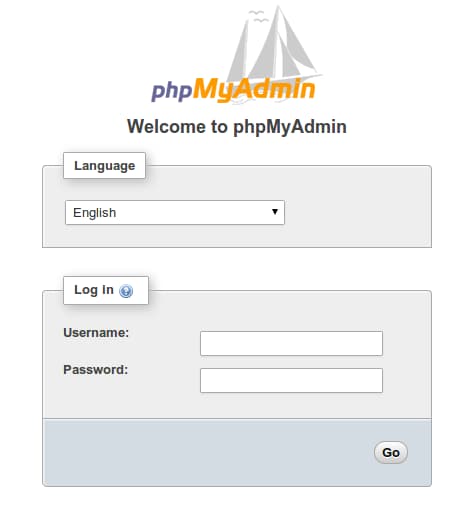
You can now log into the interface using the root username and the administrative password you set up during the MySQL installation.
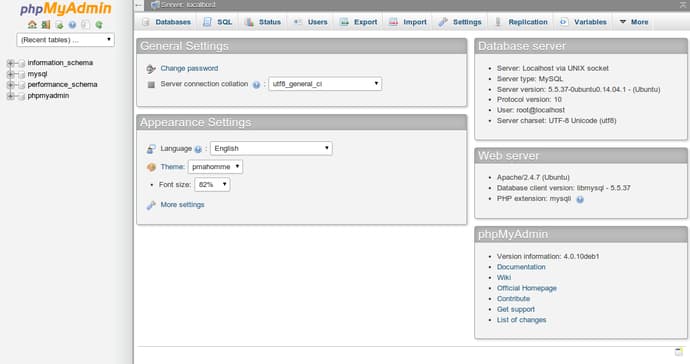
When you log in, you’ll see the user interface, which will look something like this:
Step Two — Secure your phpMyAdmin Instance
We were able to get our phpMyAdmin interface up and running fairly easily. However, we are not done yet. Because of its ubiquity, phpMyAdmin is a popular target for attackers. We need to secure the application to help prevent unauthorized use.
One of the easiest way of doing this is to place a gateway in front of the entire application. We can do this using Apache’s built-in .htaccess authentication and authorization functionalities.
Configure Apache to Allow .htaccess Overrides
First, we need to enable the use of .htaccess file overrides by editing our Apache configuration file.
We will edit the linked file that has been placed in our Apache configuration directory:
sudo nano /etc/apache2/conf-available/phpmyadmin.conf
We need to add an AllowOverride All directive within the <Directory /usr/share/phpmyadmin> section of the configuration file, like this:
<pre> <Directory /usr/share/phpmyadmin> Options FollowSymLinks DirectoryIndex index.php <span class=“highlight”>AllowOverride All</span> . . . </pre>
When you have added this line, save and close the file.
To implement the changes you made, restart Apache:
sudo service apache2 restart
Create an .htaccess File
Now that we have enabled .htaccess use for our application, we need to create one to actually implement some security.
In order for this to be successful, the file must be created within the application directory. We can create the necessary file and open it in our text editor with root privileges by typing:
sudo nano /usr/share/phpmyadmin/.htaccess
Within this file, we need to enter the following information:
AuthType Basic
AuthName "Restricted Files"
AuthUserFile /etc/phpmyadmin/.htpasswd
Require valid-user
Let’s go over what each of these lines mean:
- AuthType Basic: This line specifies the authentication type that we are implementing. This type will implement password authentication using a password file.
- AuthName: This sets the message for the authentication dialog box. You should keep this generic so that unauthorized users won’t gain any information about what is being protected.
- AuthUserFile: This sets the location of the password file that will be used for authentication. This should be outside of the directories that are being served. We will create this file shortly.
- Require valid-user: This specifies that only authenticated users should be given access to this resource. This is what actually stops unauthorized users from entering.
When you are finished, save and close the file.
Create the .htpasswd file for Authentication
Now that we have specified a location for our password file through the use of the AuthUserFile directive within our .htaccess file, we need to create this file.
We actually need an additional package to complete this process. We can install it from our default repositories:
sudo apt-get install apache2-utils
Afterward, we will have the htpasswd utility available.
The location that we selected for the password file was “/etc/phpmyadmin/.htpasswd”. Let’s create this file and pass it an initial user by typing:
<pre> sudo htpasswd -c /etc/phpmyadmin/.htpasswd <span class=“highlight”>username</span> </pre>
You will be prompted to select and confirm a password for the user you are creating. Afterwards, the file is created with the hashed password that you entered.
If you want to enter an additional user, you need to do so without the -c flag, like this:
<pre> sudo htpasswd /etc/phpmyadmin/.htpasswd <span class=“highlight”>additionaluser</span> </pre>
Now, when you access your phpMyAdmin subdirectory, you will be prompted for the additional account name and password that you just configured:
<pre> http://<span class=“highlight”>domain_name_or_IP</span>/phpmyadmin </pre>
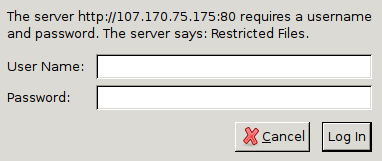
After entering the Apache authentication, you’ll be taken to the regular phpMyAdmin authentication page to enter your other credentials. This will add an additional layer of security since phpMyAdmin has suffered from vulnerabilities in the past.
Conclusion
You should now have phpMyAdmin configured and ready to use on your Ubuntu 14.04 server. Using this interface, you can easily create databases, users, tables, etc., and perform the usual operations like deleting and modifying structures and data.
To learn how to further secure your interactions with the server by encrypting your communication with SSL, check out our article on setting up SSL certificates with phpMyAdmin.
<div class=“author”>By Justin Ellingwood</div>
Thanks for learning with the DigitalOcean Community. Check out our offerings for compute, storage, networking, and managed databases.
About the author

Former Senior Technical Writer at DigitalOcean, specializing in DevOps topics across multiple Linux distributions, including Ubuntu 18.04, 20.04, 22.04, as well as Debian 10 and 11.
Still looking for an answer?
 This work is licensed under a Creative Commons Attribution-NonCommercial- ShareAlike 4.0 International License.
Become a contributor for community
Get paid to write technical tutorials and select a tech-focused charity to receive a matching donation.

DigitalOcean Documentation
Full documentation for every DigitalOcean product.

Resources for startups and AI-native businesses
The Wave has everything you need to know about building a business, from raising funding to marketing your product.
The developer cloud
Scale up as you grow — whether you're running one virtual machine or ten thousand.

Start building today
From GPU-powered inference and Kubernetes to managed databases and storage, get everything you need to build, scale, and deploy intelligent applications.



