

By Jeff Fan and Anish Singh Walia
Introduction
Most AI-powered customer support chatbots struggle to remember conversations across sessions, forcing users to repeat themselves and driving up support costs (human-assisted support tickets often cost tens of dollars each to resolve). This results in repeated context, up to 40% higher token usage, three times more messages needed to resolve an issue, and overall frustration for users. Continuity is key: without memory, customer experiences are less efficient and satisfaction drops.
In this tutorial, you’ll learn how to build a customer support AI agent with persistent conversation memory—powered by DigitalOcean AI Platform and the Memori SDK. By remembering context across days or weeks, your agent reduces token costs by 40–60% and resolves issues in half the number of messages. We’ll show you how to deploy this memory-powered agent using FastAPI, PostgreSQL, and an embeddable JavaScript widget, making integration into your stack seamless.
The whole process takes about 25–30 minutes, is suitable for intermediate users, and runs around $10–20 per month. You can find the full source code on GitHub.
Key Takeaways
Before diving into the implementation, here’s what you’ll learn:
- Conversation memory reduces token costs by 40-60% by compressing conversation history into summaries instead of sending full message exchanges.
- Persistent memory improves customer support AI performance by 40% satisfaction increase and 50% faster resolution time through contextual awareness.
- Multi-tenant architecture enables per-domain isolation for privacy and GDPR compliance, making this suitable for SaaS deployments.
- DigitalOcean AI Platform provides the infrastructure for deploying AI agents with conversation memory, while Memori SDK handles intelligent memory compression.
- Production-ready stack combines FastAPI, PostgreSQL, Docker, and an embeddable JavaScript widget for easy integration.
- Cross-session conversation memory allows customer support AI agents to remember conversations across days or weeks, eliminating the need for users to repeat context.
What You’ll Build
By the end of this tutorial, you’ll have a complete AI customer support system with:
- FastAPI Backend - REST API with PostgreSQL database for multi-tenant support
- AI Agents on DigitalOcean - Deployed AI Platform agents using the DigitalOcean AI Platform (Llama-3.2-3B-Instruct model)
- Persistent Memory - Memori SDK integration that remembers conversations across sessions
- Embeddable Widget - JavaScript widget you can add to any website with one line of code
- Optional Knowledge Base - Upload PDFs, documents, and URLs for domain-specific answers
Architecture: A multi-tenant SaaS-ready system with per-domain isolation, ensuring privacy and GDPR compliance.
Demo Video: See the AI Agent Memory in Action
The sample customer-support agent in this tutorial demonstrates persistent memory across sessions. Follow the configuration and testing steps below to see how conversation state is stored and retrieved.
Prerequisites
Required:
- DigitalOcean account with AI Platform access. If you’re new to the AI Platform, see our Getting Started with the DigitalOcean AI Platform tutorial
- DigitalOcean API Token (get here) - format:
dop_v1_... - DigitalOcean Project ID - format:
aaaaaaaa-xxxx-xxxx-xxxx-xxxxxxxxxxxx, can be found in the DigitalOcean Cloud Panel URL (find here) - Docker & Docker Compose v2.0+
- Git
Optional:
- PostgreSQL client (psql, pgAdmin, DBeaver)
- Domain name (localhost works for testing)
Why Memory Matters: The Numbers
Token Cost Savings
With typical pricing of $0.002 per 1K tokens, memory reduces costs by 40-60%:
| User Base | Annual Cost Without Memory | Annual Cost With Memory | Annual Savings |
|---|---|---|---|
| 10K users | $1,920 | $1,152 | $768 |
| 50K users | $9,600 | $5,760 | $3,840 |
| 100K users | $19,200 | $11,520 | $7,680 |
| 1M users | $192,000 | $115,200 | $76,800 |
Assumptions: 2 conversations/user/month, 10 message pairs per conversation.
Key Performance Metrics
| Metric | Without Memory | With Memory | Improvement |
|---|---|---|---|
| Messages to Resolution | 12-15 | 5-7 | 50% fewer |
| Customer Satisfaction | 3.2/5.0 | 4.5/5.0 | +40% |
| Human Escalation Rate | 25% | 10% | 60% reduction |
| First Contact Resolution | 42% | 68% | +62% |
Quick ROI Example
For a 50K user deployment:
- Token savings: ~$4K/year
- Escalation reduction: ~$2.7M/year
- Retention improvement: ~$750K/year
- Break-even: Within first month
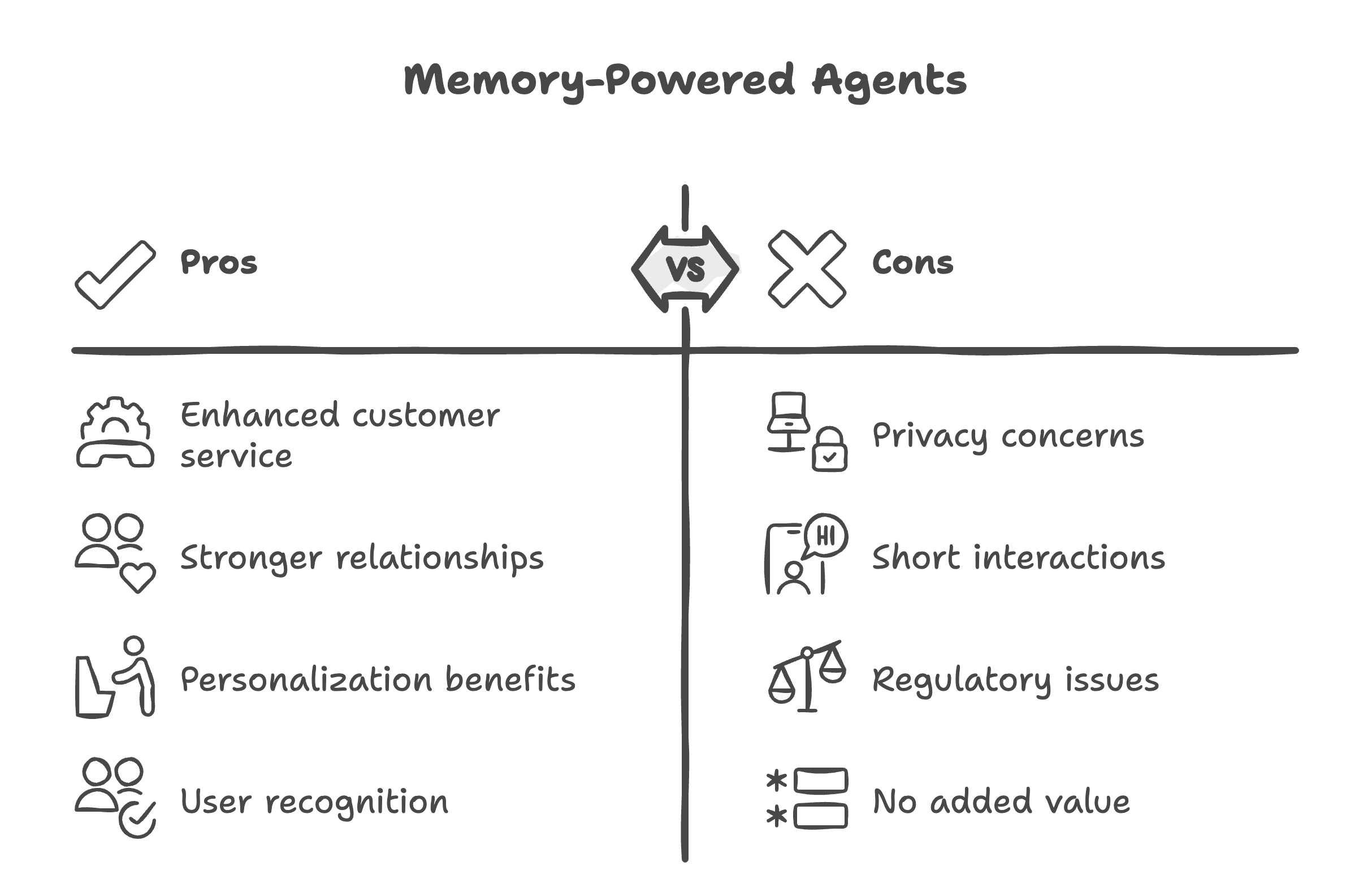
When to Use Memory-Powered Agents
Good Use Cases for Memory-Powered Agents:
- Customer service spanning days/weeks
- Long-term relationships (banking, healthcare, education)
- Personalization drives value (recommendations, upsells)
- Users expect recognition (retail, hospitality)
Avoid These Use Cases:
- Privacy-sensitive scenarios (anonymous hotlines)
- Short-lived, one-time interactions (FAQ lookups)
- Regulatory constraints prevent data retention
- Memory doesn’t add value (static information queries)
Architecture Overview
Core Stack: FastAPI + PostgreSQL + DigitalOcean AI Platform + Memori SDK (MemoriLabs OSS)
Flow: User → Widget → Backend (retrieves memory + queries knowledge base) → AI → Store response → User
Per-Domain Isolation: Each domain gets isolated memory space for privacy and GDPR compliance.
How Data Flows:
When an end user interacts with your website, their messages pass through several layers:
- User inputs a message in the widget embedded on your site.
- The Widget serves as a bridge, sending data securely to your backend server.
- The Backend (FastAPI) retrieves any relevant conversation memory (via the Memori SDK) and queries the knowledge base to add extra context if needed.
- The request is sent to the AI agent (running on DigitalOcean AI Platform), which generates a response based on both the live input and retrieved memory/context.
- The Backend stores the new memory and delivers the response back through the widget, presenting it to the user.
Per-Domain Isolation:
To ensure strong privacy and compliance (such as GDPR), each customer domain (company, organization, or project) is given an isolated memory space. This means conversation histories and knowledge bases are never shared between tenants, so users only receive responses based on their own organization’s data and previous conversations.
This architecture supports strong security, efficient cost management, and easy scalability as your user base grows.
How Memory Works
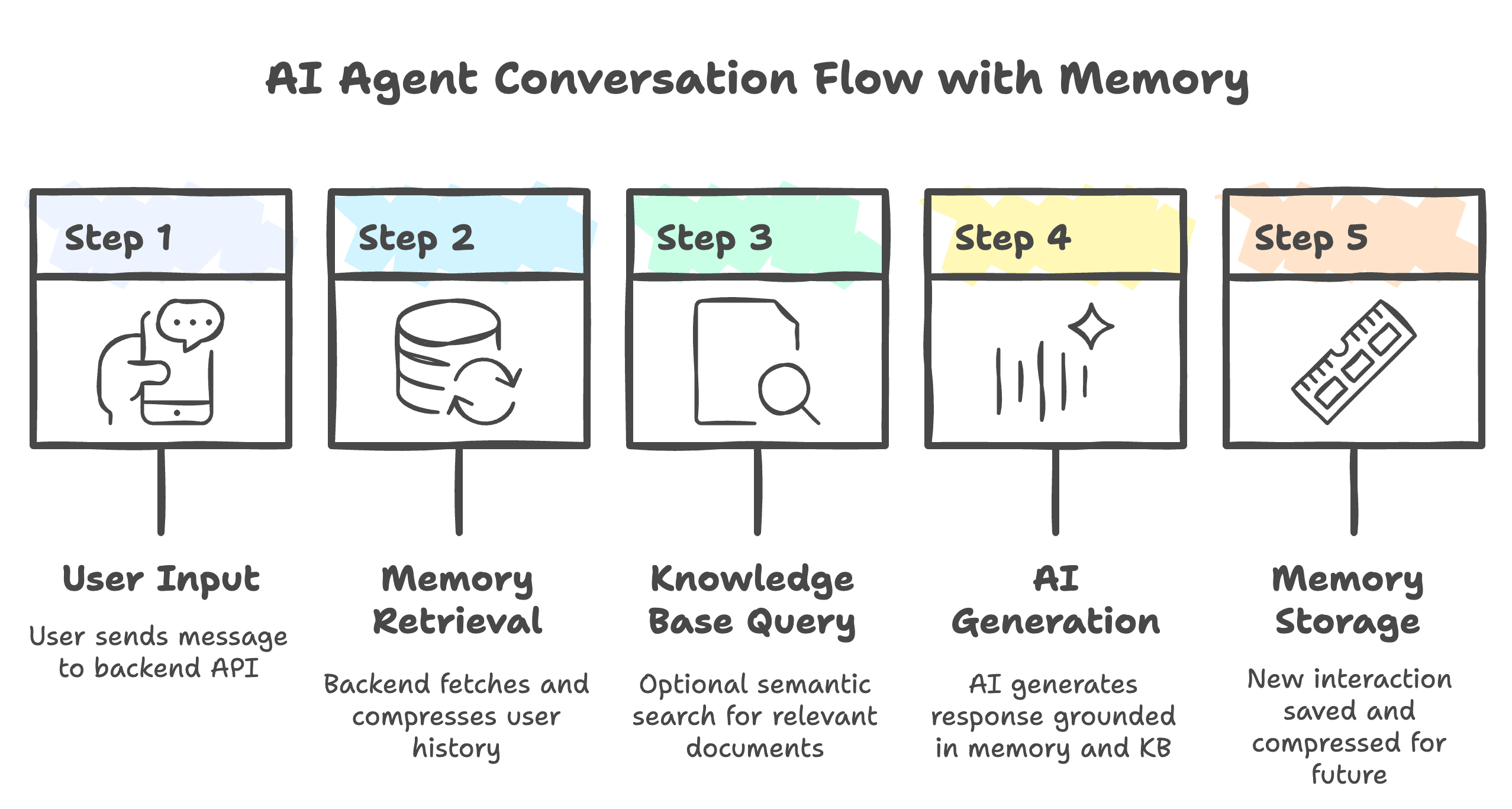
Key Benefit: Instead of sending the entire conversation history (expensive), Memori sends compressed summaries (cheap). For example: “User Alice, order #12345, inquired about delivery” instead of 20 message exchanges. This conversation memory approach is what makes customer support AI agents cost-effective at scale.
Step 1: Clone the Repository and Set Up Your Local Environment
To begin, you’ll need a local copy of the project and a configuration file for your environment variables.
-
Clone the repository:
This downloads the full project code to your local machine.git clone https://github.com/Boburmirzo/customer-support-agent-memory.git cd customer-support-agent-memory -
Create your environment config:
Copy the sample environment file to.env. This file holds sensitive details like your API keys and database credentials, which you’ll customize in the next step.cp .env.example .env
Now you’re ready to configure your credentials and continue with the setup.
Configure Environment Variables
Edit .env with your credentials:
# DigitalOcean Configuration
DIGITALOCEAN_TOKEN=dop_v1_YOUR_TOKEN_HERE
DIGITALOCEAN_PROJECT_ID=YOUR_PROJECT_UUID_HERE

# AI Model Configuration
DIGITALOCEAN_AI_MODEL_ID=88515689-75c6-11ef-bf8f-4e013e2ddde4  # Llama-3.2-3B-Instruct
DIGITALOCEAN_EMBEDDING_MODEL_ID=22653204-79ed-11ef-bf8f-4e013e2ddde4  # text-embedding-3-small
DIGITALOCEAN_REGION=tor1

# Database Configuration (defaults work for Docker Compose)
POSTGRES_HOST=localhost
POSTGRES_PORT=5432
POSTGRES_DB=customer_support
POSTGRES_USER=do_user
POSTGRES_PASSWORD=do_user_password
DATABASE_URL=postgresql+psycopg://do_user:do_user_password@localhost:5432/customer_support
Note: The default AI model is Llama-3.2-3B-Instruct (fast, cost-effective). You can find other model IDs in your DigitalOcean AI Platform console. For more on building AI agents, see our tutorial on building an AI agent or chatbot with the DigitalOcean AI Platform.
Step 2: Start Services with Docker Compose
This tutorial uses Docker Compose to orchestrate the FastAPI backend and PostgreSQL database services.
docker-compose up -d --build
Wait 30 seconds for containers to initialize, then verify:
# Check services are running
docker-compose ps

# Expected output (container names and status):
# NAME                  COMMAND              STATE         PORTS
# customer_support_api  "uvicorn ..."        Up            0.0.0.0:8000->8000/tcp
# customer_support_db   "docker-entrypoint"  Up (healthy)  0.0.0.0:5432->5432/tcp

# Test API health
curl http://localhost:8000/health | jq
Both containers should show Up status. API documentation is available at http://localhost:8000/docs
# Check logs if something fails
docker-compose logs --tail=50 api
docker-compose logs --tail=50 postgres

# Common issues:
# - Missing .env variables
# - Port 8000 or 5432 already in use
# - Database not ready: wait longer and retry
Understanding the Multi-Tenant Architecture
Before registering your domain, it’s important to understand how the three key components work together:
The Three Services
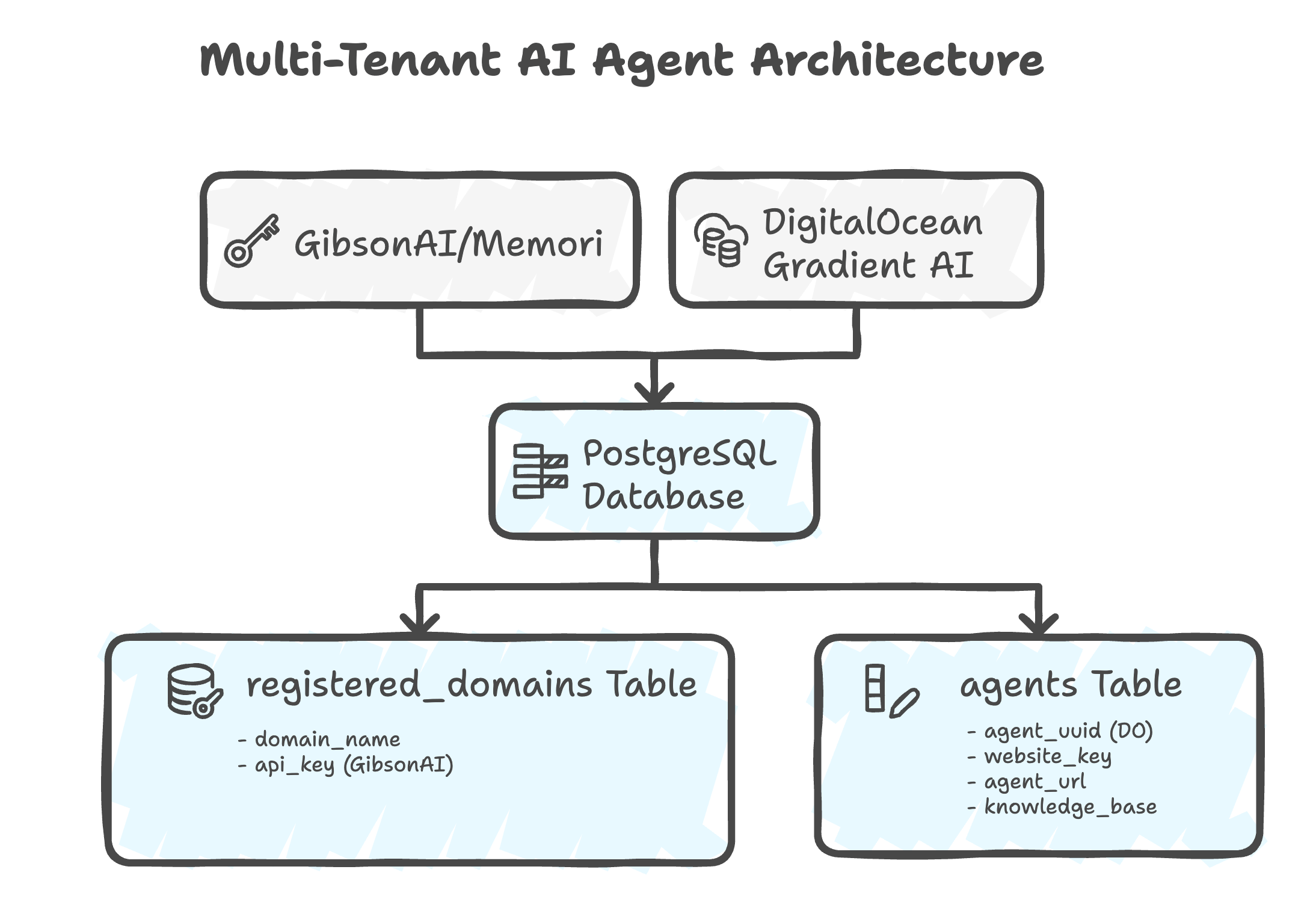
Architecture Diagram Explanation:
- Top Layer: External services (DigitalOcean for AI processing)
- Bottom Layer: Your local PostgreSQL database storing domain configurations and agent metadata
- Connections: Agent Creation (DigitalOcean ↔ PostgreSQL)
What Each Component Does
- Domain Registration (Local PostgreSQL)
- Creates a unique domain ID in your local database
- Links: Domain Name → Domain ID → DO Agent
- Enables multi-tenant SaaS architecture (each customer has isolated agents)
- DigitalOcean AI Platform agent (
agent_uuid)- The actual AI that processes conversations
- Uses the model specified in your
.env(e.g., Llama-3.2-3B-Instruct) - Deployed on DigitalOcean cloud infrastructure
- Can have knowledge bases attached
- Memori SDK (MemoriLabs OSS)
- Provides persistent memory across conversations
- Open source memory management for AI agents
- Integrated directly into your application
Database Tables Created
| Table | Purpose |
|---|---|
registered_domains |
Maps domain names to unique domain IDs |
agents |
Stores DigitalOcean agent details (UUID, URL, access keys) |
knowledge_bases |
Tracks uploaded documents and their vector embeddings |
user_sessions |
Manages active user chat sessions |
conversation_history |
Stores all messages for memory retrieval |
Step 3: Register Your Domain
Register your domain to get a unique domain ID for API requests.
curl -X POST http://localhost:8000/register-domain \
  -H "Content-Type: application/json" \
  -d '{"domain_name": "www.example.com"}' | jq
Expected response:
{
  "message": "Domain registered successfully",
  "domain_id": "1c6b2b83-xxxx-xxxx-xxxx-xxxxxxxxxxxx",
  "agent_created": true,
  "agent_uuid": "13129dad-xxxx-xxxx-xxxx-xxxxxxxxxxxx",
  "agent_deployment_status": "STATUS_WAITING_FOR_DEPLOYMENT",
  "deployment_message": "Agent created successfully. Deployment will complete in 1-2 minutes and you can start using it."
}
Important: Save the domain_id as you’ll need it for all subsequent API requests.
export DOMAIN_ID="1c6b2b83-xxxx-xxxx-xxxx-xxxxxxxxxxxx" # Use your actual domain_id
This ID is used in the X-Domain-ID header for session and chat endpoints.
Wait 60-120 seconds for the agent to deploy, then check status:
curl -X GET "http://localhost:8000/agents" | jq
Expected response when ready:
{
  "agents": [
    {
      "website_key": "c984d06a********",
      "agent_uuid": "13129dad-xxxx-xxxx-xxxx-xxxxxxxxxxxx",
      "website_url": "https://example.com",
      "agent_url": "https://yurhuqh*********.agents.do-ai.run",
      "has_access_key": true,
      "created_at": "2025-11-17T14:09:50.939987",
      "knowledge_base_uuids": ["1001f07b-xxxx-xxxx-xxxx-xxxxxxxxxxxx"]
    }
  ],
  "total": 1
}
Look for "has_access_key": true and a valid agent_url to confirm the agent is ready.
Step 4: Test the Chat API
Within-Session Memory Test
In this test, we’ll simulate a customer service interaction to demonstrate within-session memory:
- First message: Alice introduces herself and mentions order #12345
- Follow-up: Alice asks “When will it arrive?” without repeating her name or order number
- Expected result: AI remembers context from the first message and responds appropriately
Create a session and test the memory-powered chat:
# Create session (uses DOMAIN_ID from Step 3)
curl -X POST http://localhost:8000/session \
  -H "Content-Type: application/json" \
  -H "X-Domain-ID: $DOMAIN_ID" \
  -d '{
    "user_id": "user_alice_123"
  }' | jq
Expected response:
{
  "session_id": "87d12af1-xxxx-xxxx-xxxx-xxxxxxxxxxxx",
  "user_id": "user_alice_123",
  "created_at": "2025-11-17T15:16:45.689949",
  "website_url": null
}
Save the session_id:
export SESSION_ID="87d12af1-xxxx-xxxx-xxxx-xxxxxxxxxxxx" # Use your actual session_id
Send a message (note: include user_id to enable memory):
curl -X POST http://localhost:8000/ask \
  -H "Content-Type: application/json" \
  -H "X-Domain-ID: $DOMAIN_ID" \
  -d "{
    \"session_id\": \"$SESSION_ID\",
    \"user_id\": \"user_alice_123\",
    \"question\": \"Hi, my name is Alice and I need help with order #12345\"
  }" | jq
Expected response (may take 8-12 seconds due to AI model inference):
{
  "answer": "Hello Alice, it's nice to formally meet you. I can see that you're inquiring about order #12345. I'd be happy to assist you with that. Can you please tell me a bit more about what's going on with your order? Is there something specific you'd like to know or a problem you're experiencing?",
  "sources": [],
  "session_id": "87d12af1-xxxx-xxxx-xxxx-xxxxxxxxxxxx"
}
Send a follow-up to test memory:
curl -X POST http://localhost:8000/ask \
  -H "Content-Type: application/json" \
  -H "X-Domain-ID: $DOMAIN_ID" \
  -d "{
    \"session_id\": \"$SESSION_ID\",
    \"user_id\": \"user_alice_123\",
    \"question\": \"When will it arrive?\"
  }" | jq
Expected response:
{
  "answer": "I understand you're looking for an update on your order #12345. As I mentioned earlier, I don't have the exact delivery date available. I recommend checking the order confirmation email or your account on the retailer's website for the latest shipping updates. This should give you a more accurate estimate of when you can expect your order to arrive. If you need further assistance or have any other questions, feel free to ask!",
  "sources": [],
  "session_id": "87d12af1-xxxx-xxxx-xxxx-xxxxxxxxxxxx"
}
Notice the AI remembered Alice’s name and order number (#12345) from the previous message without repeating the context. The response time (8-12 seconds) is due to DigitalOcean AI Platform model inference.
Step 5: Test Cross-Session Memory
This test demonstrates the core value of persistent memory. When users return hours or days later, the AI remembers their previous conversations—no need to repeat context!
Testing Scenario
Simulating a returning customer (same user, different session):
- Create new session for Alice (same
user_id) - Ask about order without providing any context
- Expected result: AI remembers order #12345 from the previous session and responds with context
Create a new session for the same user to simulate them returning later:
# Same user_id, new session (uses DOMAIN_ID from Step 3)
curl -X POST http://localhost:8000/session \
  -H "Content-Type: application/json" \
  -H "X-Domain-ID: $DOMAIN_ID" \
  -d '{
    "user_id": "user_alice_123"
  }' | jq
Expected response:
{
  "session_id": "4820e62c-xxxx-xxxx-xxxx-xxxxxxxxxxxx",
  "user_id": "user_alice_123",
  "created_at": "2025-11-17T15:37:05.540265",
  "website_url": null
}
Save the new session ID:
export SESSION_ID_NEW="4820e62c-xxxx-xxxx-xxxx-xxxxxxxxxxxx" # Use your actual session_id
User returns later and asks without repeating context (same user_id enables cross-session memory):
curl -X POST http://localhost:8000/ask \
  -H "Content-Type: application/json" \
  -H "X-Domain-ID: $DOMAIN_ID" \
  -d "{
    \"session_id\": \"$SESSION_ID_NEW\",
    \"user_id\": \"user_alice_123\",
    \"question\": \"Has my order arrived yet?\"
  }" | jq
Expected response (may take 10-15 seconds):
{
  "answer": "I'd be happy to help you with your order status. Since you had previously ordered #12345, I recommend checking your email for updates on the delivery status. Sometimes, updates are sent directly to your inbox. If you're unable to find any information in your email, you can also check the order tracking information on our website. Would you like me to guide you on how to do that?",
  "sources": [],
  "session_id": "4820e62c-xxxx-xxxx-xxxx-xxxxxxxxxxxx"
}
The AI remembered the order number (#12345) from the previous session without the user repeating anything. This cross-session memory is the core value—users feel recognized and valued, and you save tokens by not repeating context.
This cross-session memory is the core value—users feel recognized and valued, and you save tokens by not repeating context.
Step 6: Embed Widget in Your Website
Add the widget to any website. Choose one of these methods:
Method 1: Simple One-Line Integration (Recommended)
<!-- Just add this single script tag -->
<script
  src="http://localhost:8000/static/widget.js"
  data-domain-id="YOUR_DOMAIN_ID_HERE"
></script>
The widget automatically uses the script’s origin as the API URL.
Method 2: JavaScript Initialization (More Control)
<script src="http://localhost:8000/static/widget.js"></script>
<script>
  CustomerSupportWidget.init({
    apiUrl: 'http://localhost:8000',
    domainId: 'YOUR_DOMAIN_ID_HERE', // From Step 3
    position: 'bottom-right',
    primaryColor: '#0066cc',
    welcomeMessage: 'Hi! How can I help you today?',
  });
</script>
| Option | Type | Default | Description |
|---|---|---|---|
apiUrl |
string | required | Your backend API URL |
domainId |
string | required | Domain ID from Step 3 (UUID format) |
position |
string | 'bottom-right' |
Widget position: 'bottom-right', 'bottom-left' |
primaryColor |
string | '#007bff' |
Brand color for buttons and header |
welcomeMessage |
string | 'Hi! How can I help you today?' |
Initial greeting message |
placeholder |
string | 'Type your message...' |
Input field placeholder |
widgetTitle |
string | 'Customer Support' |
Widget header title |
autoScrape |
boolean | true |
Automatically scrape website for knowledge |
Example with full customization:
<script>
  CustomerSupportWidget.init({
    apiUrl: 'https://your-api.com',
    domainId: '1c6b2b83-xxxx-xxxx-xxxx-xxxxxxxxxxxx', // Your domain ID from Step 3
    position: 'bottom-left',
    primaryColor: '#FF5722',
    welcomeMessage: 'Welcome back! How can we help today?',
    placeholder: 'Ask me anything...',
    widgetTitle: 'Customer Support',
    autoScrape: false,
  });
</script>
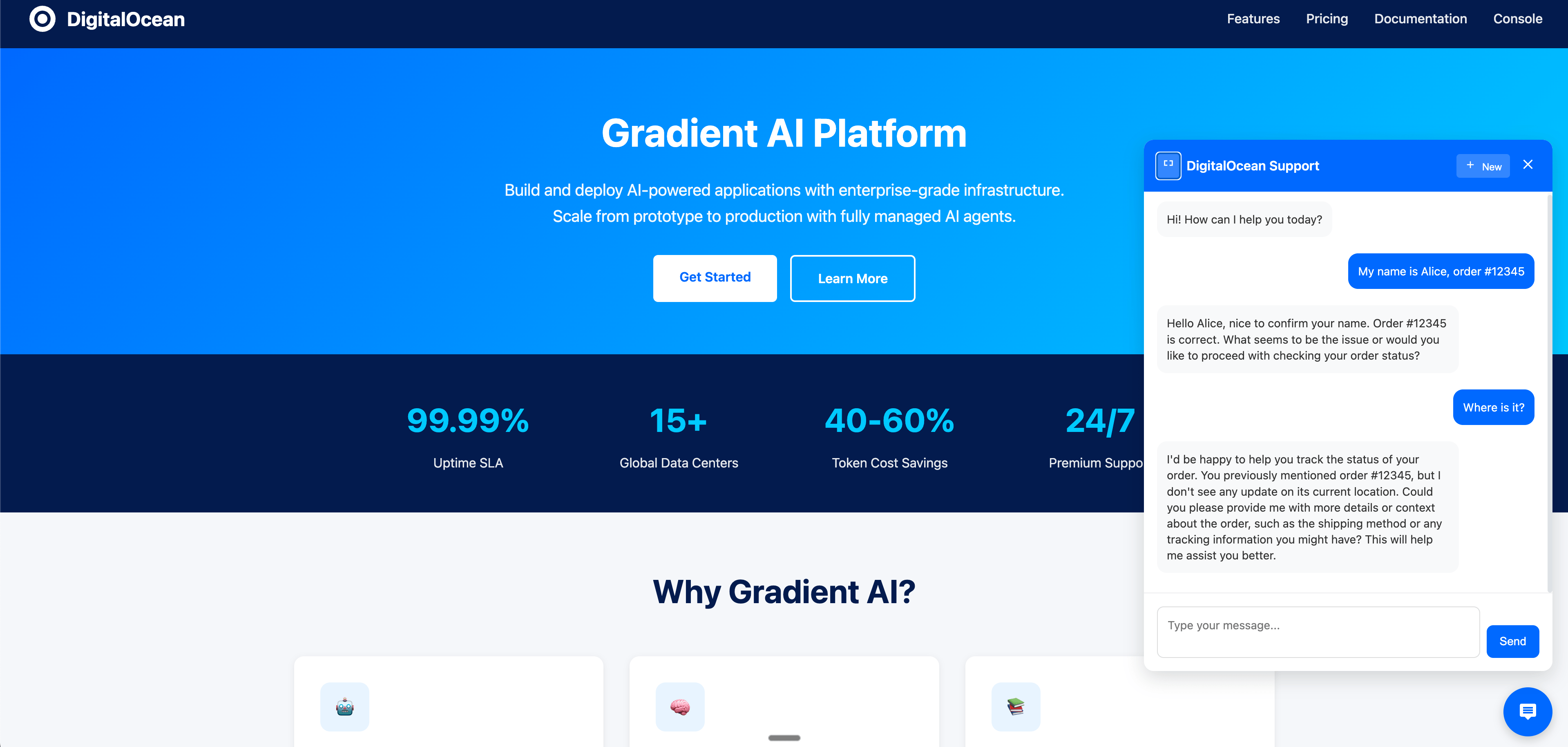
Test the Widget
Visit the demo page to see the widget in action:
Product Demo: http://localhost:8000/static/product_demo.html
The widget automatically handles:
- Session management (persisted in localStorage)
- Conversation memory across page reloads
- Persistent memory for returning users (via user_id)
- Responsive design for mobile and desktop
Step 7: Upload Knowledge Base (Optional)
When to Use This:
- You have product documentation, FAQs, or policy documents
- You want the AI to answer questions about specific company information
- You need grounded, accurate responses based on your documentation
Enhance your agent with domain-specific knowledge.
Option A: Upload a File (PDF, TXT, MD, JSON, CSV)
# Upload a file (e.g., product manual, FAQ, policy document)
# Uses DOMAIN_ID from Step 3
curl -X POST http://localhost:8000/knowledge/upload/file \
  -H "X-Domain-ID: $DOMAIN_ID" \
  -F "file=@/path/to/your/document.pdf" | jq

# Expected response:
{
  "message": "File uploaded successfully",
  "filename": "product-manual.pdf",
  "file_type": "pdf",
  "chunks_created": 47,
  "kb_uuid": "1001f07b-c3bf-11f0-b074-4e013e2ddde4"
}
Option B: Upload Plain Text Content
# Upload text content directly
curl -X POST http://localhost:8000/knowledge/upload/text \
  -H "Content-Type: application/json" \
  -H "X-Domain-ID: $DOMAIN_ID" \
  -d '{
    "text": "Your FAQ or support content here...",
    "title": "Support FAQ"
  }' | jq
Option C: Upload from URL
curl -X POST http://localhost:8000/knowledge/upload/url \
  -H "Content-Type: application/json" \
  -H "X-Domain-ID: $DOMAIN_ID" \
  -d '{
    "url": "https://example.com/help/shipping-policy"
  }' | jq
Check Supported File Types
curl -X GET http://localhost:8000/knowledge/supported-types | jq
Verify Knowledge Base
curl -X GET http://localhost:8000/knowledge-bases | jq
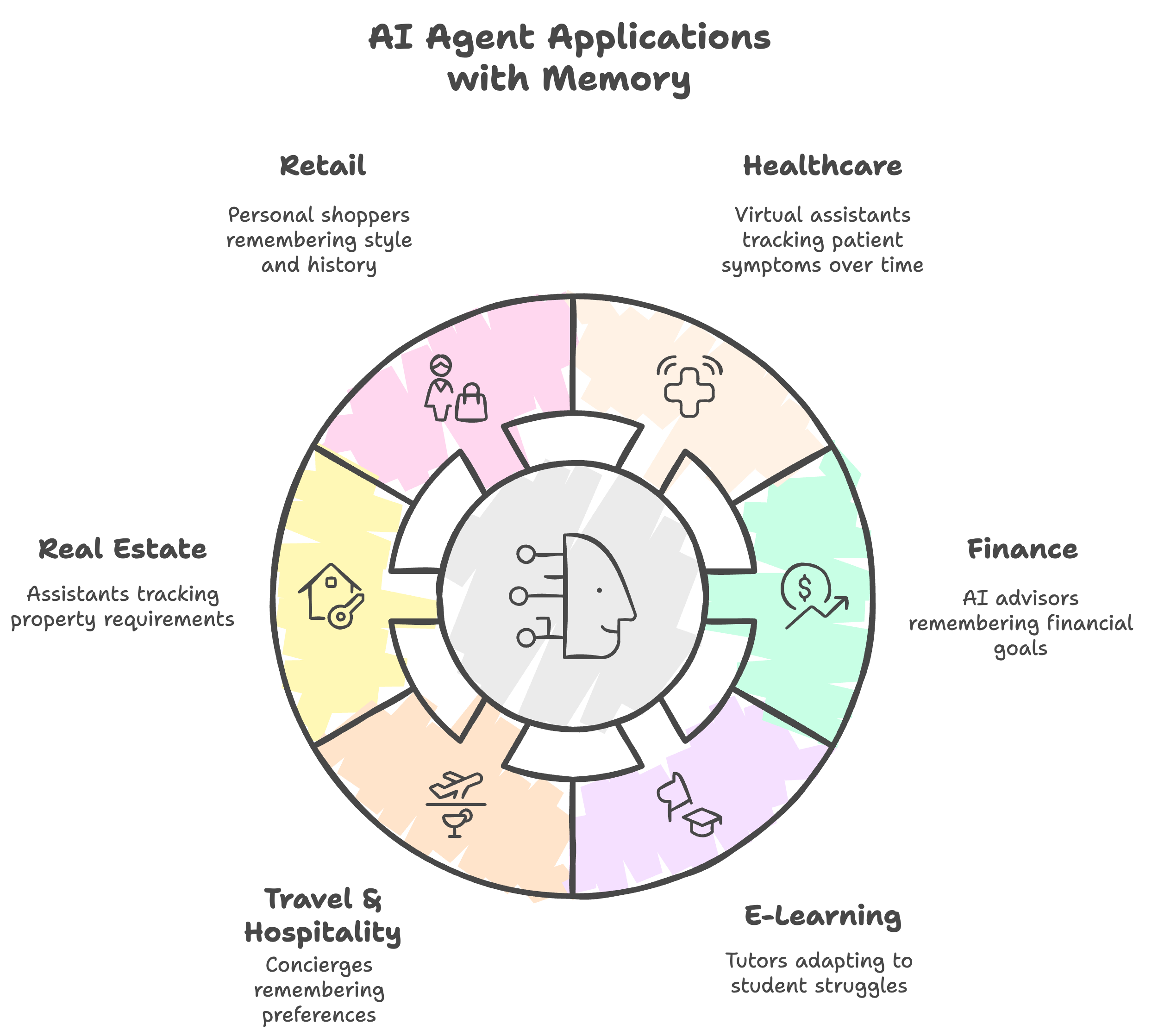
Beyond Customer Support
This agent + memory architecture works for any consumer-facing scenario requiring continuity and personalization:
- Healthcare: Virtual assistants tracking patient symptoms over time (70% reduction in redundant questions)
- Finance: AI advisors remembering financial goals and providing proactive guidance (50% increase in product adoption)
- E-Learning: Tutors adapting to student struggles (40% better completion rates)
- Travel & Hospitality: Concierges remembering preferences (35% higher repeat bookings)
- Real Estate: Assistants tracking property requirements (45% faster deal closure)
- Retail: Personal shoppers remembering style and history (3x higher conversion)
Anywhere relationship continuity matters, memory creates measurable value.
Common Issues & Quick Fixes
Issue 1: 500 Error When Testing Chat
Symptoms: Widget or API returns “Failed to send message: 500” error
Common Causes:
- DigitalOcean agent access key is invalid or expired
- Agent not fully deployed yet
- Agent experiencing temporary issues
Solution:
To refresh the agent access key, you can use the following script:
# Step 1: Create the refresh script (if not already created)
cat > refresh_agent_key.py << 'EOF'
"""Script to refresh the agent access key"""
import asyncio
import asyncpg
import os
from dotenv import load_dotenv
from digitalocean_client import DigitalOceanGradientClient

load_dotenv()

async def refresh_agent_key():
    conn = await asyncpg.connect(
        host=os.getenv("POSTGRES_HOST", "localhost"),
        port=int(os.getenv("POSTGRES_PORT", 5432)),
        user=os.getenv("POSTGRES_USER", "do_user"),
        password=os.getenv("POSTGRES_PASSWORD", "do_user_password"),
        database=os.getenv("POSTGRES_DB", "customer_support"),
    )

    try:
        agent = await conn.fetchrow("SELECT * FROM agents LIMIT 1")
        if not agent:
            print("No agent found")
            return

        agent_uuid = agent["agent_uuid"]
        website_key = agent["website_key"]

        client = DigitalOceanGradientClient()
        access_key_response = await client.create_agent_access_key(
            agent_uuid=agent_uuid,
            key_name=f"key-{website_key}-refresh"
        )

        new_key = access_key_response.get("secret_key")
        if new_key:
            await conn.execute(
                "UPDATE agents SET agent_access_key = $1 WHERE agent_uuid = $2",
                new_key, agent_uuid
            )
            print(f"✓ New access key created (length: {len(new_key)})")
            print("✓ Database updated")
        else:
            print(f"✗ Failed to get key: {access_key_response}")
    finally:
        await conn.close()

if __name__ == "__main__":
    asyncio.run(refresh_agent_key())
EOF

# Step 2: Run the refresh script
docker cp refresh_agent_key.py customer_support_api:/app/
docker exec customer_support_api python refresh_agent_key.py

# Step 3: Restart the API
docker-compose restart api
After restarting, wait 10-20 seconds and try your request again.
Issue 2: Memory Not Persisting Across Sessions
Symptoms: AI doesn’t remember previous conversations when user returns
Common Causes:
user_idnot provided in requests- Different
user_idused across sessions - Memori API key not configured
Solution:
# Correct: Always include the same user_id
curl -X POST http://localhost:8000/ask \
  -H "Content-Type: application/json" \
  -H "X-Domain-ID: $DOMAIN_ID" \
  -d '{
    "session_id": "your-session-id",
    "user_id": "user_alice_123",  # ← Same user_id every time
    "question": "Your question here"
  }'

# Wrong: Omitting user_id
# This will work but won't have cross-session memory
Check your Memori API key:
# Verify MEMORI_API_KEY is set in .env
grep MEMORI_API_KEY .env

# Should show: MEMORI_API_KEY=mk_...
Issue 3: Agent Deployment Stuck
Symptoms: Agent status remains “STATUS_WAITING_FOR_DEPLOYMENT” after 5+ minutes
Solution:
# Check agent status
curl -X GET "http://localhost:8000/agents" | jq

# If stuck, check DigitalOcean logs
docker-compose logs api | grep -i "deployment\|agent"

# Force refresh by restarting the API
docker-compose restart api
If the issue persists, the agent may have failed to deploy. Check your DigitalOcean dashboard or contact support.
Issue 4: Widget Not Loading
Symptoms: Widget doesn’t appear on the webpage
Common Causes:
- Incorrect
domainIdin widget configuration - API not accessible from browser
- CORS issues
Solution:
// 1. Verify domainId is correct (from Step 3)
console.log('Domain ID:', 'YOUR_DOMAIN_ID_HERE');

// 2. Check if API is accessible
fetch('http://localhost:8000/health')
  .then((r) => r.json())
  .then((d) => console.log('API Health:', d))
  .catch((e) => console.error('API Error:', e));

// 3. Check browser console for errors
// Press F12 → Console tab
Issue 5: Knowledge Base Upload Fails
Symptoms: File upload returns error or knowledge base not attached to agent
Solution:
# Check supported file types
curl -X GET http://localhost:8000/knowledge/supported-types | jq

# Verify file size (should be < 10MB for most cases)
ls -lh /path/to/your/file.pdf

# Check if knowledge base was created
curl -X GET http://localhost:8000/knowledge-bases | jq

# If KB exists but not attached, wait 2 minutes for background task
# The system attaches KBs after agent deployment completes
Frequently Asked Questions
1. How does conversation memory compression reduce token costs?
Conversation memory compression works by converting long conversation histories into concise summaries. Instead of sending 20 message exchanges (which could be 2,000+ tokens), Memori sends a compressed summary like “User Alice, order #12345, inquired about delivery” (about 20 tokens). This reduces token usage by 40-60% while maintaining context for your customer support AI.
2. Can I use this with other AI models besides Llama-3.2-3B-Instruct?
Yes. You can use any model available in your DigitalOcean AI Platform console. Update the DIGITALOCEAN_AI_MODEL_ID in your .env file with the model ID of your choice. Different models have varying performance characteristics, costs, and response times.
3. How does cross-session conversation memory work?
Cross-session conversation memory relies on the user_id parameter. When you provide the same user_id across different sessions, Memori retrieves compressed summaries from previous conversations and includes them in the context. This allows your customer support AI to remember information from days or weeks earlier without storing full conversation histories.
4. Is this architecture suitable for production?
Yes. The architecture includes:
- Multi-tenant isolation for security and privacy
- PostgreSQL for reliable data persistence
- Docker containerization for easy deployment
- Per-domain agent isolation for GDPR compliance
- Error handling and troubleshooting capabilities
For production, you’ll want to add monitoring, rate limiting, and deploy to cloud infrastructure. See our Docker deployment guides for production best practices.
5. What happens if the Memori API key expires?
If your Memori API key expires or becomes invalid, memory retrieval will fail, but the chat functionality will continue to work without memory. You’ll see errors in the API logs. To fix this, update the MEMORI_API_KEY in your .env file and restart the services.
6. How do I scale this for high traffic?
For high traffic, consider:
- Using a managed PostgreSQL database like DigitalOcean Managed Databases
- Deploying the FastAPI backend to DigitalOcean App Platform or Droplets with load balancing
- Implementing caching for frequently accessed memories
- Using connection pooling for database connections
- Adding rate limiting to prevent abuse
Conclusion
By following this tutorial, you’ve set up a robust, production-ready customer support AI agent with persistent conversation memory using DigitalOcean AI Platform, FastAPI, PostgreSQL, and the Memori SDK. Your completed system doesn’t just answer questions,it remembers customer interactions across sessions, resulting in more natural conversations and reducing token costs by up to 60%.
In this guide, you:
- Built and deployed an end-to-end AI support system that can be tailored to your business with FastAPI and PostgreSQL.
- Integrated advanced conversation memory to provide your users with context-aware assistance, improving resolution times and customer satisfaction.
- Enabled multi-tenant, secure deployment patterns, making your architecture fit for SaaS use across multiple domains while maintaining privacy.
- Laid the groundwork for real-world scalability and reliability by leveraging Docker, DigitalOcean infrastructure, and memory-efficient design.
This conversational memory pattern isn’t just for customer support,it’s a proven approach in industries like healthcare, fintech, travel, and education, wherever continuity and personalization improve results.
Want to go even further? Experiment with connecting your agent to your domain knowledge, CRM, or ticketing systems, and monitor actual user conversations so you can iterate and optimize over time. For advanced and real-time AI agent patterns—including serverless workflows and horizontal scaling—check out our tutorial on building real-time AI agents with the AI Platform and serverless functions.
Next Steps
-
Add domain-specific knowledge
- Upload your FAQ documents, product manuals, policies
- Train the agent on your specific use cases
-
Customize the conversation flow
- Modify system prompts in the backend
- Add business logic for escalation triggers
-
Monitor and optimize
- Track token usage and costs
- Analyze conversation patterns for improvements
- A/B test different greeting messages
-
Scale for production
- Deploy to DigitalOcean App Platform or Droplets with load balancing
- Set up monitoring and alerting
- Implement rate limiting and security measures
- Consider DigitalOcean Managed Databases for PostgreSQL
-
Integrate with existing systems
- Connect to CRM for customer data
- Integrate with ticketing systems for escalation
- Add analytics dashboard for insights
Ready to keep building? Continue your journey with the DigitalOcean AI Platform for seamless deployment, scaling, and management of your intelligent applications.
Thanks for learning with the DigitalOcean Community. Check out our offerings for compute, storage, networking, and managed databases.
About the author(s)
I’m a Senior Solutions Architect in Munich with a background in DevOps, Cloud, Kubernetes and GenAI. I help bridge the gap for those new to the cloud and build lasting relationships. Curious about cloud or SaaS? Let’s connect over a virtual coffee! ☕
Anish is a Sr Technical Content Strategist and Team Lead at DigitalOcean with 7+ years of experience as an DevOps SRE at Nutanix and Cloud consultant at AMEX, and technical writing at DOCN, and shipping deep infra and AI inference tutorials that help developers deploy production‑ready applications on DigitalOcean.
Still looking for an answer?
 This work is licensed under a Creative Commons Attribution-NonCommercial- ShareAlike 4.0 International License.
Become a contributor for community
Get paid to write technical tutorials and select a tech-focused charity to receive a matching donation.

DigitalOcean Documentation
Full documentation for every DigitalOcean product.

Resources for startups and AI-native businesses
The Wave has everything you need to know about building a business, from raising funding to marketing your product.
The developer cloud
Scale up as you grow — whether you're running one virtual machine or ten thousand.

Start building today
From GPU-powered inference and Kubernetes to managed databases and storage, get everything you need to build, scale, and deploy intelligent applications.
